
Key Takeaways
- Bing Site Explorer organizes known URLs into expandable, folder-like paths, helping diagnose site sections without reviewing pages individually.
- It combines folder-level structure, indexing status, crawl issues, exclusions, redirects, backlinks, clicks, and impressions in one interface.
- Filters can isolate robots.txt restrictions, noindex directives, server errors, redirects, canonical patterns, and URLs Bing has not yet crawled.
- Site Explorer reveals whether problems affect individual URLs, directories, or broader sections, while URL Inspection provides deeper analysis for specific pages.
Bing Site Explorer is a diagnostic SEO tool inside Bing Webmaster Tools that presents a website’s known URLs in an expandable, folder-based view, helping site owners understand how Bing has discovered, crawled, indexed, and categorized different parts of the site.
Instead of displaying every URL in one long list, Site Explorer organizes them into logical URL paths that resemble folders in a desktop file manager. A site might therefore appear under sections such as /blog/, /products/, or /category/, making it easier to investigate one part of a large website at a time.
These folders are URL-path containers and do not necessarily correspond to physical folders on the web server. Within them, Site Explorer can show indexed URLs, crawl errors, excluded pages, robots.txt restrictions, redirects, noindex pages, backlinks, clicks, impressions, and other information from Bing’s recent crawling and search activity. Microsoft describes Site Explorer as a way to see how Bing views a website and most of the URLs it has encountered.
Google Search Console provides comparable information through reports such as Page Indexing, Search Performance, and URL Inspection, but it does not currently offer the same type of expandable folder-based site exploration interface.
How to Access and Navigate Bing Site Explorer
A website must first be added and verified in Bing Webmaster Tools. The glossary entry for Bing Webmaster Tools explains the account setup and verification process.
To access Site Explorer:
- Sign in to Bing Webmaster Tools.
- Select the verified website to analyze.
- Open Site Explorer from the navigation.
- Expand the root domain to view available folders and URL paths.
- Select a folder or individual URL to examine its data.
Folders can be expanded much like a file directory. For example, selecting /blog/ may reveal individual article URLs or deeper subfolders underneath it.
Folder-level information can include the number of known URLs, indexed URLs, errors, warnings, exclusions, clicks, impressions, and backlinks. Folders can also be sorted according to measures such as clicks, impressions, or alphabetical order.
Site Explorer also provides filters for isolating URLs with particular conditions. Depending on the available data, these can include indexed URLs, 404–410 responses, 403 or 5xx problems, robots.txt restrictions, noindex directives, redirects, canonical-source URLs, guideline issues, and URLs selected by Bing but not yet crawled.
This makes it possible to begin with a broad site section and progressively narrow the investigation to individual problematic pages.
Key Features and URL States in Bing Site Explorer
Site Explorer combines website structure, crawl status, search visibility, and backlink information within the same interface.
Folder-Based Website View
The expandable URL hierarchy is the tool’s defining feature. Rather than examining thousands of pages individually, a site owner can compare entire sections such as /services/, /products/, and /resources/.
This is particularly useful for large ecommerce, publishing, marketplace, and multilingual websites.
Folder-Level Performance Data
Site Explorer can aggregate clicks, impressions, backlinks, and URL-status information at folder level.
For example, one content directory may contain hundreds of indexed URLs but receive very few impressions, while another smaller section generates a large share of search traffic. Such differences can help identify areas that deserve deeper content or technical analysis.
Indexed
An Indexed URL is one Bing reports as being present in its search index. Being indexed does not mean that the page necessarily ranks well or receives impressions. It only confirms that Bing has included the URL in its index.
Errors and Warnings
Errors can identify serious problems encountered while processing URLs, including dead links or server failures. Warnings identify indexed pages with issues that may hinder their performance. Their meaning varies according to the issue reported.
Excluded URLs
An excluded URL is one Bing has chosen not to include in its index. Reasons can vary and may include technical conditions, duplication, quality considerations, spam-related issues, or other indexing decisions.
An exclusion should therefore be investigated rather than automatically interpreted as a thin-content problem.
Individual URL Details
Selecting a specific URL can reveal details such as clicks and impressions, discovered date, last crawl date, HTTP status, backlink information, and HTTPS status.
Individual URLs can also be passed to Bing URL Inspection for deeper diagnosis or submitted for indexing where that option is available. Site Explorer can also send an individual URL to Bing’s robots.txt Tester to check whether crawl rules are blocking access.
Important Checks to Make in Bing Site Explorer
Site Explorer is most useful when its folder structure is combined with status filters to look for patterns rather than isolated numbers.
Indexed URL Count
Check the Indexed status for important folders to determine how many known URLs Bing reports as indexed.
For example, if /blog/ contains 300 valid articles but only a small portion appear as indexed, that difference may justify a closer crawl and indexing investigation.
Crawl Errors
Filter URLs for response problems such as 404–410 client errors, 403 access restrictions, and 5xx server errors.
A concentration of errors inside one folder may indicate a broken deployment, removed content, incorrect internal links, or a server-side problem affecting that section.
Robots.txt and Noindex Exclusions
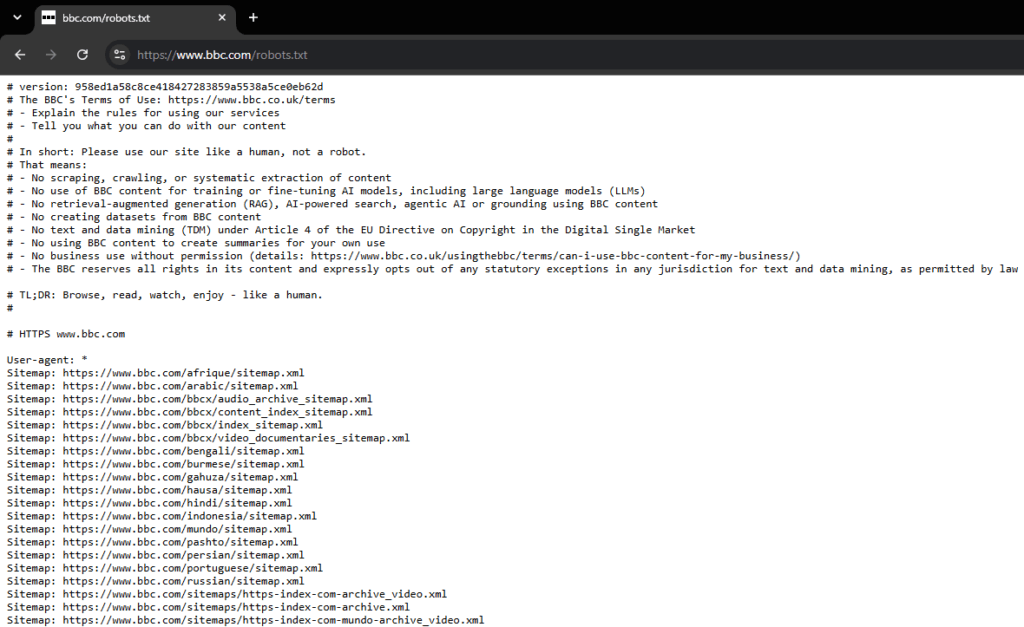
Use the available filters to locate URLs affected by robots.txt restrictions or noindex directives.
This is especially useful for detecting an accidental block applied to an important directory rather than checking pages individually.
URLs Not Yet Crawled
Site Explorer can identify URLs Bing knows about but has not yet crawled.
This does not automatically indicate a quality problem. Bing may simply not have reached the URL yet or may have deferred crawling because of temporary conditions. Important individual URLs can be investigated further or submitted for indexing.
Redirect and Canonical Patterns
Redirect and canonical-related filters can reveal unexpected URL patterns.
For example, a large number of URLs inside one product category unexpectedly redirecting elsewhere may indicate a migration or configuration problem. Canonical information can likewise help identify duplication or consolidation patterns.
Folder-Level Clicks, Impressions, and Backlinks
Comparing these metrics across directories can reveal which areas of the site attract the most search visibility, traffic, and external links.
The data is particularly valuable on larger websites where reviewing every URL separately would be impractical.
How Bing Site Explorer Helps With Search Optimization
Bing Site Explorer turns large amounts of crawl and indexing information into a hierarchical view of the website’s URL structure. This makes it easier to determine whether a problem affects one page, one directory, or a much larger portion of the site.
Suppose hundreds of product URLs inside /products/shoes/ suddenly begin returning 5xx server errors. A page-by-page report could make that pattern difficult to recognize quickly, whereas a folder-level view can make the concentration of errors much easier to identify.
Finding Indexing Gaps Across Site Sections
Comparing folders can reveal situations where important sections contain unusually high numbers of excluded URLs, crawl errors, robots.txt blocks, noindex pages, or URLs that Bing has not yet crawled.
Once a problematic section is identified, individual pages can be checked with Bing URL Inspection to determine what Bing knows about each URL and whether technical corrections are necessary.
The tool can also help reveal URL bloat. Ecommerce and faceted-navigation systems, for example, may produce many parameterized or duplicate-looking URLs. Seeing these paths together can expose patterns that would be difficult to notice in a flat report.
The appropriate fix depends on the cause and may involve canonicalization, redirects, internal-link changes, parameter controls, or changes to URL generation. Robots.txt controls crawl access rather than canonicalization, so it should not be used simply to consolidate duplicate URLs.
Finally, folder-level clicks, impressions, and backlinks can support broader content decisions. A high-value section receiving little visibility may need stronger internal linking or content improvement, while a section attracting substantial links and impressions may deserve further expansion.
Frequently Asked Questions
What does the Excluded status in Bing Site Explorer mean?
Excluded means Bing knows about the URL but has chosen not to include it in its index. The reason can vary, so important excluded pages should be investigated individually using Site Explorer and, where necessary, URL Inspection.
Is it possible to request a bulk recrawl of a whole folder in Bing Site Explorer?
Microsoft’s current Site Explorer documentation describes requesting indexing for individual URLs rather than a folder-wide bulk recrawl. Individual URLs can be submitted for indexing, while XML sitemaps, IndexNow, or Bing URL submission methods are more appropriate for larger groups of URLs.
Does Bing Site Explorer show URLs blocked by robots.txt?
Yes. Site Explorer includes filtering for URLs disallowed by robots.txt, which can help identify whether important pages or directories are being blocked unintentionally.
Is there a similar tree-view tool inside Google Search Console?
Not directly. Google Search Console provides indexing, performance, sitemap, and URL inspection information, but it does not currently offer the same expandable folder-style website view as Bing Site Explorer.
What is the difference between Bing Site Explorer and URL Inspection?
Site Explorer is designed for exploring patterns across an entire website or directory. Bing URL Inspection focuses on deeper crawl, indexing, and technical information for one specific URL.
Does Bing Site Explorer show every URL on my website?
No. It primarily reflects URLs that Bing has discovered or processed. A URL that exists in the CMS but has never been discovered by Bing may therefore be absent from Site Explorer.