Key Takeaways
- Google Business Profile is a free service for eligible businesses to manage information across Google Search and Google Maps.
- Profiles can display contact details, hours, services, products, photos, reviews, updates, and customer-action links such as calls or bookings.
- Businesses can improve local marketing by keeping information accurate, responding to reviews, publishing updates, and monitoring performance data.
- Local visibility depends primarily on relevance, distance, and prominence; a complete profile supports discovery but does not guarantee Local Pack placement.
Google Business Profile is a free Google service that allows eligible businesses to manage business information that can appear in Google Search results and on Google Maps.
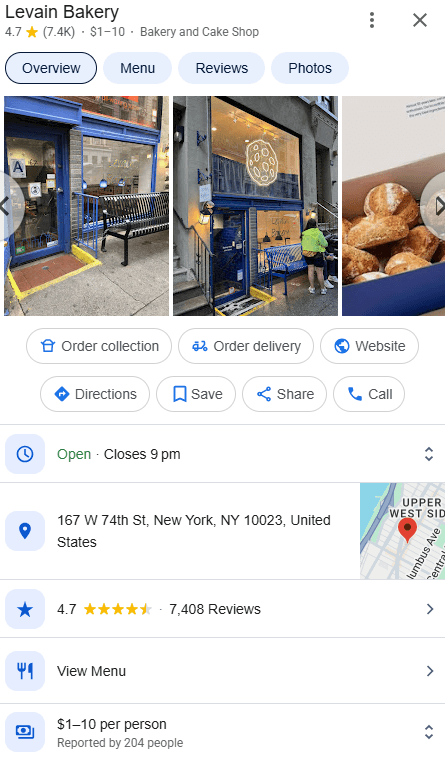
A Business Profile can display important information such as the business name, category, address or service area, business hours, phone number, website, photos, reviews, products, services, and available customer-action links. Businesses can also use the profile to respond to reviews, publish updates, and examine performance data.
Google launched Google My Business in June 2014 as a unified business-management service, building on earlier local-listing products such as Google Local, the Local Business Center, and Google Places. It was renamed Google Business Profile in November 2021.
Google Business Profile is primarily intended for businesses that interact with customers in person, either at a location customers can visit or by traveling to customers. Online-only businesses without in-person customer interaction are generally not eligible.
Bing, Apple, and Yelp
Microsoft offers Bing Places for Business, a free service for adding, claiming, verifying, and managing business listings that can appear in Bing Search and Bing Maps. Businesses can update details such as their address, hours, services, photos, and contact information through the Bing Places dashboard.
Apple offers Apple Business, a free platform that includes the brand and location-management features previously available through Apple Business Connect. Businesses can manage how their brand and locations appear across Apple Maps and other Apple services, including hours, photos, place-card information, and supported customer actions.
Yelp for Business lets businesses claim and manage their Yelp listings, update business information and photos, respond to reviews, and access tools for engaging with potential customers.
Important Features of Google Business Profile
Google Business Profile brings several tools for managing a business’s local presence into one system.
- Profile Management Through Search and Maps: Owners and managers can update business information and manage supported profile features directly through Google Search and Google Maps.
- Business and Contact Information: Profiles can display details such as the business name, category, address, phone number, website, business hours, and relevant business attributes.
- Business Location and Map Pin: Storefront businesses can provide an accurate physical address and map location, helping customers find the business location.
- Service Area Settings: Businesses that travel to customers can specify the areas they serve. If customers are not served at the business address, that address should be hidden from the public profile. Google currently allows up to 20 service areas based on cities, postal codes, or other supported areas rather than a radius around the business.
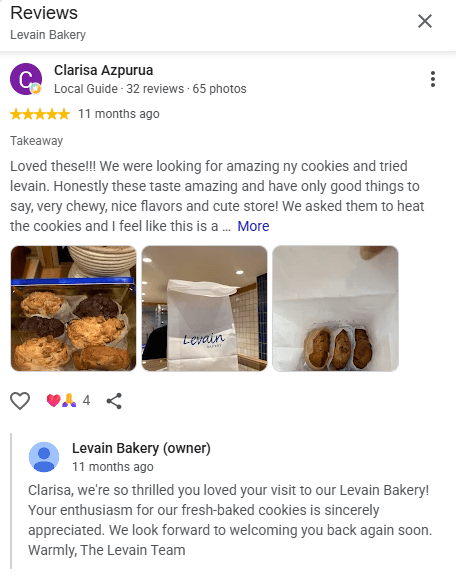
- Customer Reviews and Ratings: Customers can leave ratings and reviews, while verified businesses can publicly respond to feedback. Google states that review count and positive ratings are among the factors considered in local ranking.
- Posts, Updates, Offers, and Events: Businesses can publish announcements, offers, events, photos, videos, and supported action links that can appear with the Business Profile on Search and Maps.
- Products, Services, and Menus: Depending on the business type and location, profiles can showcase services, in-store products, menu information, descriptions, prices, and related details.
- Customer Action Options: Profiles can provide direct paths for customers to call the business, visit its website, request directions, order, reserve, or book, depending on the features available for that business.
- Booking and Appointment Links: Eligible businesses can add links for appointments, reservations, food orders, or other supported transactions. Some businesses can also integrate supported third-party booking providers.
- Performance Data: Verified profile owners can access performance data about how customers discover and interact with the business, including views, search terms, website clicks, direction requests, bookings, and other applicable interactions. Not every metric is available to every business.
Businesses with multiple eligible locations can create and manage a separate Google Business Profile for each location, while larger organizations may also use bulk-management tools. Google supports bulk management and bulk verification for businesses with 10 or more eligible locations. Business owners can upload these locations through a spreadsheet, with each location having a unique store code.
Service-area businesses that travel to customers can define the areas they serve and should hide their address if customers are not served at the business location.
Key Benefits of Google Business Profile
A properly maintained profile can support both customer discovery and local marketing.
- Improves Local Search Visibility: Complete and accurate business information can improve the likelihood of appearing for relevant local searches on Google Search and Maps. A Business Profile does not guarantee placement in the Local Pack.
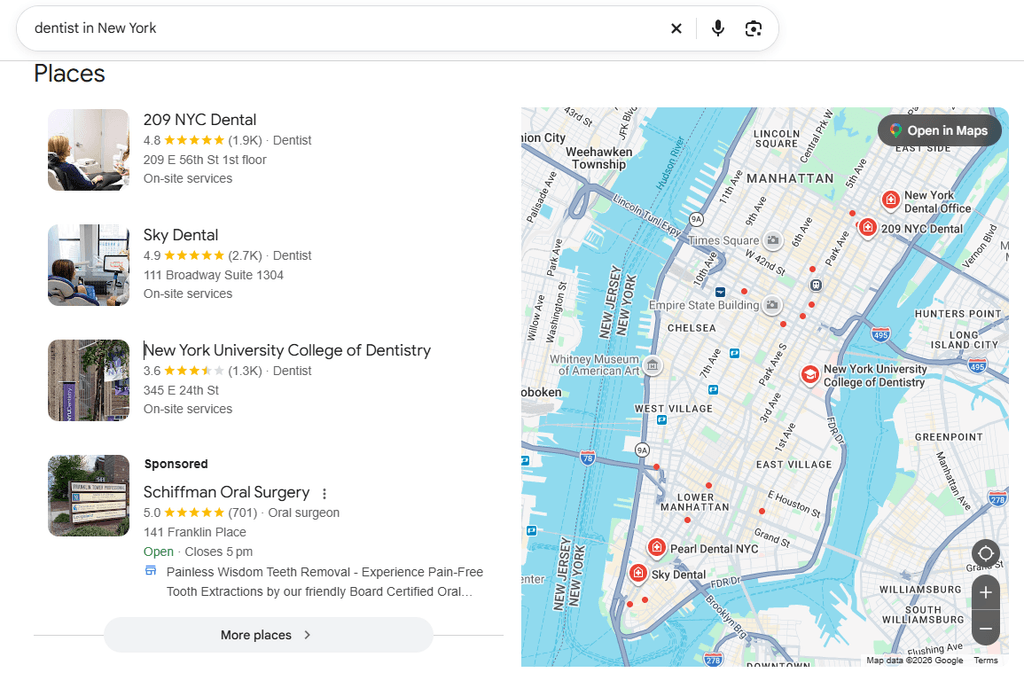
- Provides Information Before a Visit: Customers can check business hours, location, services, reviews, photos, contact information, and other details before deciding whether to visit or contact the business.
- Supports Customer Trust: Accurate information, genuine photos, customer reviews, and thoughtful business responses can help prospective customers evaluate a business.
- Can Drive Calls, Visits, and Leads: Customers can take actions such as calling, getting directions, visiting the website, placing an order, or making a booking directly from supported profile interfaces.
- Supports Local SEO: Google says local results are primarily determined by relevance, distance, and prominence. Google describes prominence as how well-known a business is, with factors such as links, review count, and positive ratings contributing to local ranking.
- Supports Mobile Customer Actions: Search and Maps make actions such as calling, navigating, booking, or visiting a website accessible without requiring customers to first find and navigate through the business website.
- Provides Customer-Behavior Insights: Performance reporting can show how customers found the profile and which supported actions they subsequently took.
Google Business Profile, AI Search, and Gemini
Accurate Business Profile information helps Google present business details correctly across Search and Maps. Google does not state that maintaining a Business Profile guarantees citation or recommendation in AI Overviews or AI Mode.
Google lets eligible users integrate Business Profile management with the Gemini web app. Gemini can help update profile information, draft review responses and posts, summarize customer feedback, and analyze Business Profile performance and search keywords. The integration is being released gradually and is subject to eligibility and regional availability.
How to Set Up and Optimize a Google Business Profile
Google Business Profile can be created and managed through Google Search, Google Maps, or the Business Profile setup page. The exact screen labels may change slightly over time, but the main workflow remains the same.
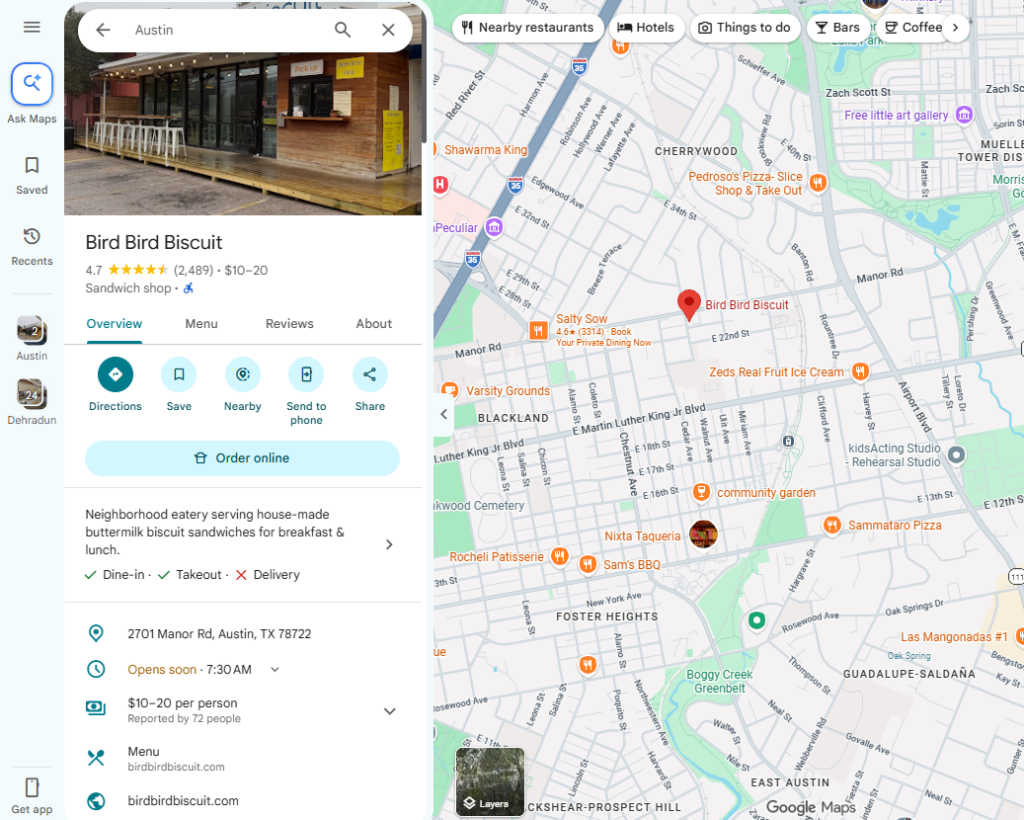
Step 1: Add or Claim the Business
First, check whether a Business Profile already exists.
To claim an existing profile:
- Open Google Maps and search for the business name and city.
- Select the correct business.
- Choose Claim this business → Manage now.
- Follow the verification instructions shown by Google.
If the profile is already managed by someone else, an authorized owner or representative can request ownership from the current profile owner.
If no profile exists:
- Go to
business.google.com/add. - Select Add your business to Google.
- Enter the requested business information and continue through setup.
Step 2: Add the Business Name and Primary Category
During setup, enter the business’s real-world name without adding unnecessary keywords or promotional wording.
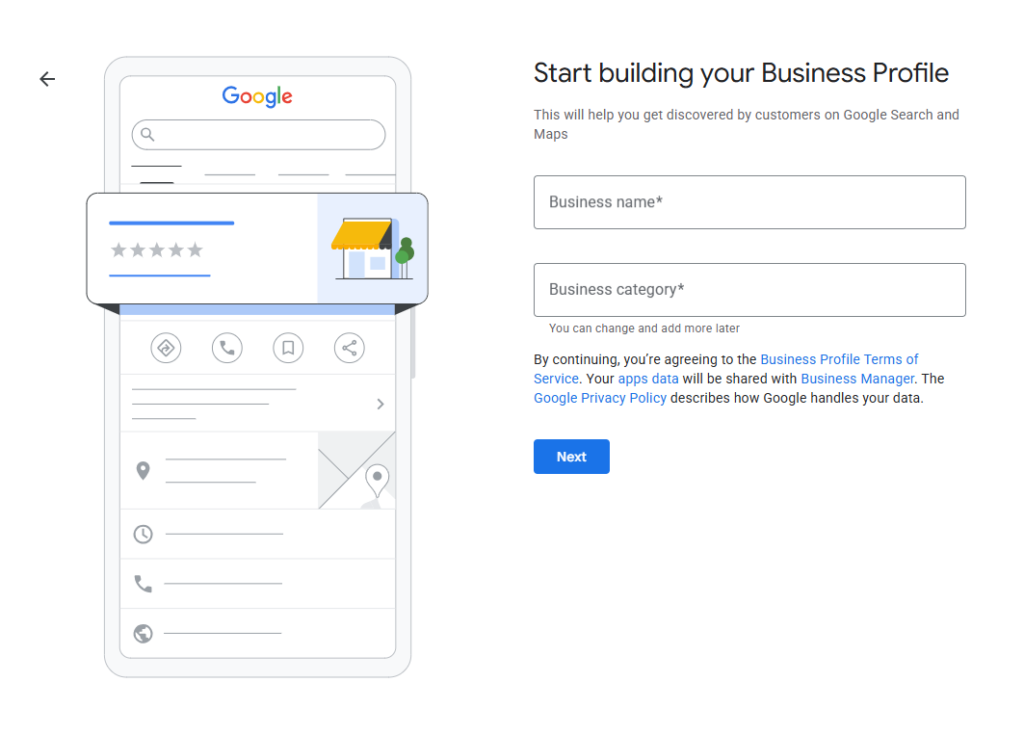
For an existing profile:
- Sign in to the Google account used to manage the profile.
- Search Google for the business name and city or “my business.”
- Select Edit profile.
- Edit Business category.
- Choose the most accurate Primary category from Google’s suggested options and save the change.
Additional relevant categories can be added when they genuinely describe the business.
Step 3: Add the Location or Service Area
For a storefront:
- Open Edit profile → Location.
- Edit Business location.
- Enter the complete physical address.
- If necessary, use Adjust to move the map pin to the correct location.
- Save the changes.
For a service-area business that visits customers, hide the address if customers are not served there and add the applicable cities, postal codes, or other supported service areas. Google currently allows up to 20 service areas and does not use radius-based service areas.
Step 4: Complete the Business Information
Sign in to the managing Google account, search for the business, and select Edit profile.
- Phone Number: Open Edit profile → Contact, add or update the phone number, and save it.
- Website: Add or update the website from the contact-information section.
- Regular Hours: Open Edit profile → Hours, enter the opening and closing times for each applicable day, and save the changes.
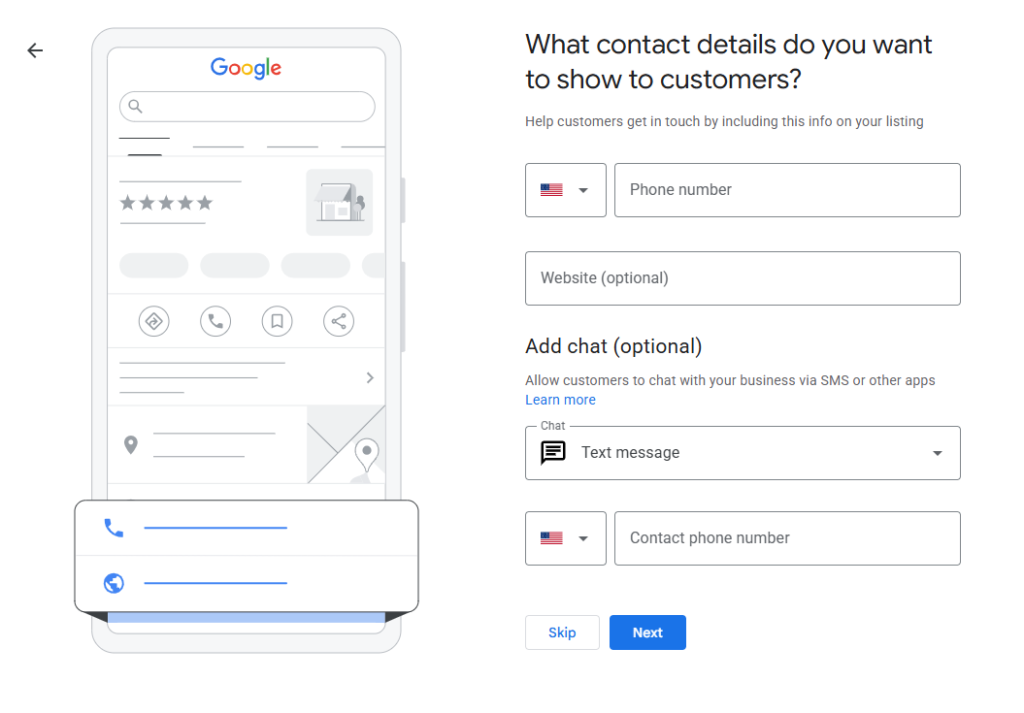
Other useful details can also be added or edited, including special hours, business description, services, products, attributes, photos, and videos. Availability of some features can vary by business category, country, or region.
Step 5: Verify the Business
Verification confirms that the person managing the profile is authorized to represent the business.
- Sign in to the Google account associated with the Business Profile.
- Search for the business name and city or “my business.”
- Open the profile and select the available Get verified option.
- Complete one of the verification methods Google provides.
Available methods can include phone or text, email, video recording, or live video call, depending on the business and location. Google automatically determines which methods are available.
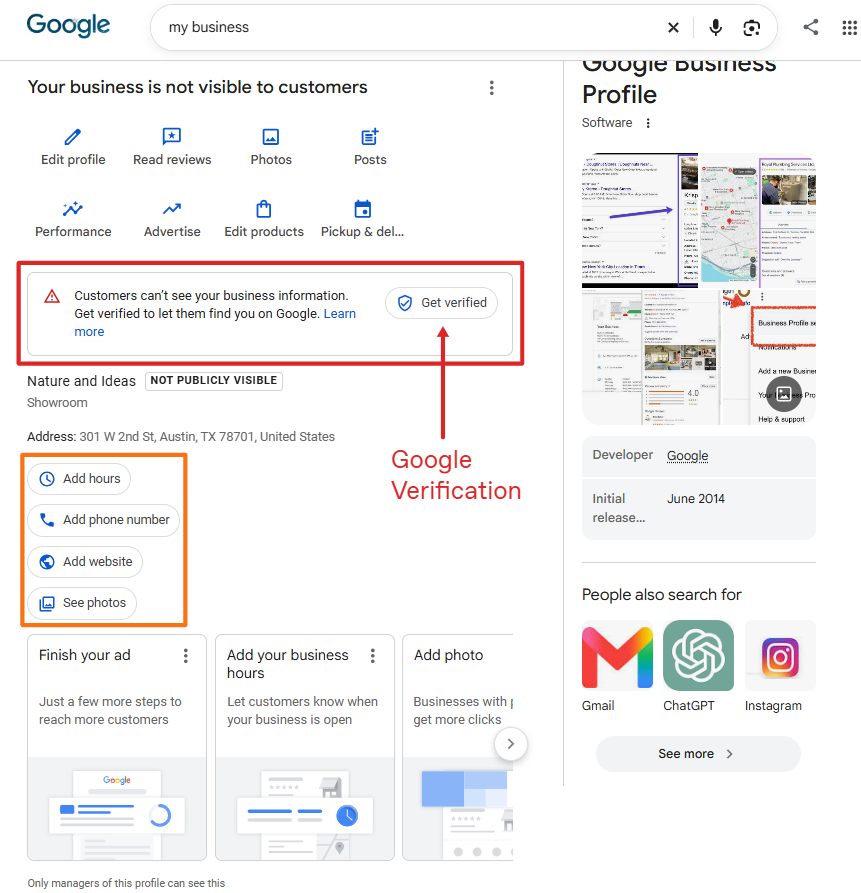
After verification, monitor Business Profile performance and keep important details such as business hours, phone numbers, website links, services, products, and photos accurate and up to date. Google specifically recommends keeping information complete and current, responding to reviews, and adding photos and videos as part of improving local visibility.
Frequently Asked Questions
Is a Google Business Profile completely free to create and maintain?
Yes. Eligible businesses can add, claim, and manage a Google Business Profile at no charge. Optional services such as Google Ads or some third-party booking platforms can involve separate costs.
What other tools should a business website owner use alongside Google Business Profile?
Useful complementary tools include Google Search Console for organic search performance, Google Analytics 4 for website behavior and conversions, and Bing Webmaster Tools or Bing Places where Bing visibility is relevant. Structured-data testing and appropriate local SEO tools can provide additional technical and competitive information.
How does Google verify my business profile ownership?
Google automatically determines which verification methods are available. Depending on the business, options can include phone or text, email, video recording, or a live video call, and additional verification may sometimes be required.
Can one Google account manage multiple business locations?
Yes, multiple profiles can be managed through Business Profile Manager. Businesses with 10 or more eligible locations of the same business can also qualify for bulk-management and verification workflows.
Why is my Google Business Profile showing as suspended?
A profile or account can be restricted when it violates Google Business Profile policies or representation guidelines. Problems can involve business eligibility, misleading information, invalid addresses, prohibited content, or other policy violations.
How long does it take for edits to appear live on my profile?
Google states that verified-profile edits are typically reviewed within 10 minutes, although some may require as long as 30 days.
What is the difference between Google Business Profile and Google Maps?
Google Business Profile is the system businesses use to manage eligible business information. Google Maps is one of the customer-facing Google services where that information can appear, alongside Google Search.