
Key Takeaways
- Google Tag Manager centralizes the creation, management, testing, and publishing of analytics, advertising, conversion, and third-party tracking tags.
- Tags detect interactions and send data, while triggers determine when they fire, variables provide changing values, and the data layer supplies structured information.
- GTM can track page views, clicks, forms, downloads, scroll depth, purchases, and other events, including ecommerce details such as product IDs and transaction values.
- GTM deploys tracking configurations, whereas Google Analytics 4 collects, processes, and reports data; Preview mode and version history support safer implementation.
Google Tag Manager (GTM) is a free tag management system from Google that allows marketers, analysts, developers, and website owners to deploy and manage measurement and marketing tags from a central interface. Instead of editing website or app code every time a tracking configuration changes, many tags can be added, updated, tested, and published through GTM.
A single GTM container can organize tags used by platforms such as Google Analytics 4, Google Ads, Meta, TikTok, Hotjar, LinkedIn, and Microsoft Advertising, although some third-party services require community templates or custom tags. GTM can also be configured to capture interactions such as link clicks, file downloads, form submissions, scroll depth, table of contents (TOC) clicks, add-to-cart actions, checkout interactions, purchases, and other ecommerce events.
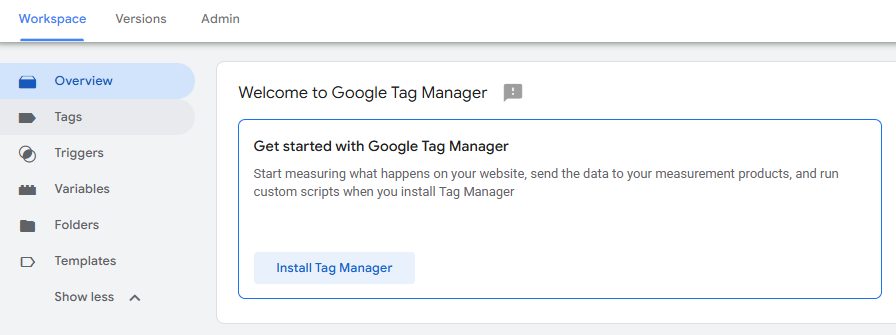
Google Tag Manager can deploy and manage the Google tag as well as analytics, advertising, conversion, remarketing, and third-party tracking tags from a single interface.
Microsoft Advertising Universal Event Tracking (UET)
Microsoft Advertising Universal Event Tracking (UET) collects conversion and behavioral data for Microsoft Advertising, but it is a tracking tag rather than a complete tag management system like Google Tag Manager. Microsoft supports deploying UET through tools such as Google Tag Manager.
What Is a Tag or Tracking Script?
A tag or tracking script is a small block of code used by analytics, advertising, marketing, testing, or other platforms to collect information or send events from a website or app to an external platform. Tags can include JavaScript, tracking pixels, image requests, and other forms of executable or measurement code.
For example, a tag may send information when a page loads, a visitor clicks an affiliate link, a file is downloaded, a form is submitted, or a purchase is completed. Depending on the platform and implementation, the transmitted data may include details such as the page URL, event name, product ID, transaction value, or campaign information.
Not every tracking tag sets a cookie. Storage behavior depends on the service, configuration, browser environment, and consent settings. Tags can therefore perform different tasks, ranging from basic analytics and advertising measurement to remarketing, conversion tracking, and user-experience analysis.
Marketing teams commonly use tags to connect website interactions with campaign performance. For example, a conversion tag can record a completed purchase and send its value to an advertising platform, helping calculate metrics such as conversion rate and return on ad spend (ROAS).
Core Components of Google Tag Manager
Google Tag Manager is built around four important concepts: tags, variables, triggers, and the data layer. Understanding how they work together makes GTM considerably easier to use.
Purchase event
Transaction value
{{Page URL}}
{{Click ID}}
Page View
Form Submission
GA4 event
Google Ads tag
1. Tags
Tags are the measurement or marketing configurations that GTM executes. They typically send information to another platform or perform a defined tracking action. Examples include a Google tag used with Google Analytics or Google Ads, a GA4 event tag recording an ecommerce action, a Meta Pixel implementation, a LinkedIn Insight Tag, and a Microsoft Advertising UET tag.
Google provides built-in templates for many commonly used services, while other platforms may be implemented through community templates or Custom HTML. Tag configuration determines what a tag does after it fires.
2. Triggers
Triggers specify when and where a tag fires. Every tag requires at least one trigger that defines the conditions under which it should execute.
Common examples include:
- Page View: fires when a particular page loads.
- Link Click: fires when a specified link is selected.
- Form Submission: fires when GTM detects a form submission event.
- Scroll Depth: can fire after a visitor reaches a defined percentage of a page.
- Custom Event: fires when a specified custom event is pushed to the data layer.
Triggers can include additional conditions, making it possible to fire a tag only on particular pages, buttons, forms, or interactions.
3. Variables
Variables are named placeholders for values that can change depending on the page, event, or interaction. Triggers and tags can use variables to add context to tracking configurations.
Depending on the interaction or page context, a variable might hold values such as:
{{Page URL}}{{Click ID}}{{Click Classes}}- product IDs
- transaction values
- page categories
For example, a click trigger could use {{Click ID}} to determine whether a particular button was selected. A GA4 purchase tag could use a data-layer variable to retrieve transaction values.
Google Tag Manager includes built-in and user-defined variables.
4. Data Layer
The data layer is a JavaScript object that temporarily makes information available to Google Tag Manager. Websites can push events and values into it so that tags, triggers, and variables can use the information consistently.
For example, an ecommerce website could send:
- product IDs;
- product names;
- cart values;
- transaction IDs;
- purchase totals;
- login-state indicators.
A purchase event could then be passed into the dataLayer, allowing GTM to send the relevant transaction information to GA4 or an advertising platform.
The data layer should not be treated as secure storage because its values exist in the client-side environment and can be accessed by tags or scripts. Sensitive information should be handled carefully, and personally identifiable information should not be sent to Google Analytics.
Google Tag Manager vs. Google Analytics 4
Google Tag Manager manages and deploys tracking configurations, while Google Analytics 4 collects, processes, and reports analytics data. GTM can send measurement data to GA4, but GTM itself is not an analytics reporting dashboard.
How to Set Up and Verify Google Tag Manager
A basic website implementation requires creating a GTM account, installing the container code, and verifying the installation before publishing tracking configurations.
Step 1: Create a GTM Account and Container
- Open the Google Tag Manager dashboard and sign in with a Google account.
- Select Create Account.
- Enter the account name and country.
- Enter a Container Name, commonly the website domain for a web implementation.
- Select the appropriate target platform, such as Web for a standard website.
- Select Create and accept the Terms of Service.
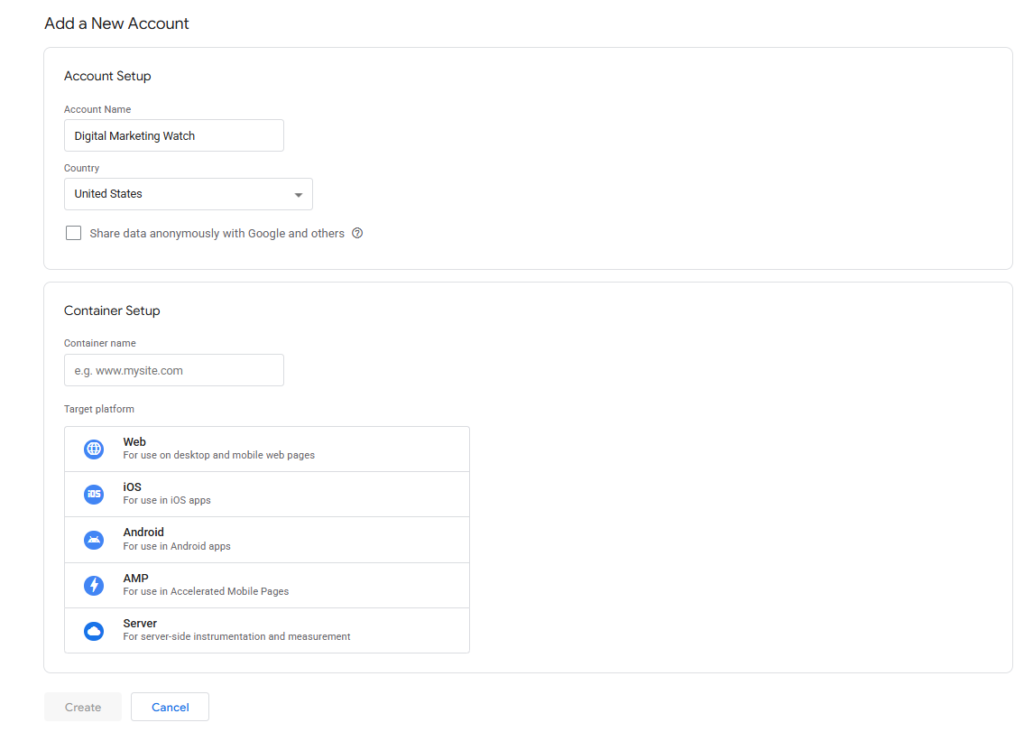
GTM also supports other container types, including Android, iOS, AMP, and server-side implementations.
Step 2: Install the GTM Container Snippets
For a web container, GTM generates two code blocks.
Header Snippet: Place the first snippet as high in the <head> section as possible. This helps the GTM container load early as the page loads.
Body Snippet: Place the second snippet immediately after the opening <body> tag. This snippet uses a <noscript> iframe.
Step 3: Verify the Technical Installation
Before publishing new tracking configurations:
- Select Preview in Google Tag Manager.
- Enter the website URL in Tag Assistant.
- Select Connect.
- Navigate through the website and perform relevant actions.
- Review which tags fired, which did not fire, and what events and variables were available.
Preview and Debug mode allows configurations to be tested before they affect the published container.
How Google Tag Manager Helps Marketers and Website Owners
Google Tag Manager makes tracking easier to organize because multiple analytics and advertising tags can be managed from one interface. Instead of modifying website templates separately for every new platform, many tracking changes can be configured inside the GTM container. Marketers can create rules for page views, clicks, forms, downloads, scroll depth, purchases, and other interactions.
GTM also improves testing and maintenance. Preview mode allows new configurations to be checked before publishing, while version history records previous container states. This can reduce reliance on repeated website deployments for routine tracking changes, although complex ecommerce tracking, custom JavaScript, consent management, and data-layer implementations may still require developer support.
Google Tag Manager: Key Features
Google Tag Manager includes several features that make tracking easier to organize, test, control, and maintain across a website or app.
1. Central Tag Management
GTM provides a single web interface for creating, editing, organizing, and publishing multiple tracking configurations without editing individual website files for every change.
2. Granular Event Triggers
Built-in trigger types can respond to actions such as page views, clicks, form submissions, scrolling, and custom events. Conditions can further limit when individual tags execute.
3. Preview and Debug Mode
Tag Assistant allows unpublished configurations to be tested and inspected before they are released to visitors.
4. Version History
Each published GTM container version creates a historical snapshot of its configuration. Previous versions can be reviewed and restored if a later deployment introduces a problem. Container versions provide an important safeguard when managing complex tracking setups.
5. Dynamic Variables
Variables capture or retrieve changing values such as page URLs, click IDs, element classes, product IDs, and transaction values. These values allow tracking rules to adapt dynamically to different pages and interactions.
6. Data Layer Architecture
The dataLayer provides a structured method for passing events and business information from a website into GTM. This is particularly useful for ecommerce, custom events, and implementations requiring consistent structured values.
7. Folders and Access Administration
Folders can organize related tags, triggers, and variables, while GTM permissions control which team members can view, edit, approve, or publish changes. User permissions are especially useful when multiple marketers, analysts, agencies, and developers share the same container.
Frequently Asked Questions
What is the structural difference between GTM and GA4?
Google Tag Manager is a tag deployment and management system, while Google Analytics 4 is an analytics and reporting platform. GTM can configure tags that send website or app activity to GA4, which then processes the data into reports, metrics, audiences, and explorations.
Will installing Google Tag Manager slow down a website?
The GTM container script loads asynchronously, but tags deployed through it can still affect page performance, especially when numerous or inefficiently configured third-party scripts are used.
How can tags be checked before going live?
Google Tag Manager provides Preview mode and Tag Assistant for testing unpublished configurations. These tools show events, available variables, tags that fired, and tags that did not fire before changes are published.
Can a mistake in GTM crash a live website?
A poorly written Custom HTML or JavaScript tag can potentially interfere with page functionality. Built-in templates, Preview mode, controlled publishing permissions, and version history reduce this risk and make previous configurations easier to restore.
Can conversions on mobile apps be tracked using GTM?
Yes. Google Tag Manager supports Android and iOS app implementations, with current mobile configurations working alongside Firebase. Mobile app tracking requires app-side integration and differs from installing a web GTM container.