
Key Takeaways
- Browser cache stores local copies of previously downloaded resources, including images, fonts, stylesheets, JavaScript, and logos, for reuse.
- Reusing valid cached resources makes repeat page views faster, reduces network transfers, lowers server work, and can decrease mobile data usage.
- Cache-Control instructions, freshness periods, ETag, and Last-Modified determine whether resources can be reused, revalidated, or downloaded again.
- Long-lived caching requires careful handling of changing or personalized content, while cache busting helps browsers retrieve updated files.
- Browser caching can support performance and user experience, but it is not a guaranteed Core Web Vitals improvement or direct ranking shortcut.
Browser cache is temporary storage managed by a web browser, such as Chrome, Safari, Firefox, or Edge, that keeps local copies of previously downloaded website resources. These may include images, logos, CSS stylesheets, JavaScript files, fonts, and other resources needed to display a page.
When a browser visits a website, it downloads the resources it needs from the web server. On later page views or return visits, the browser may reuse resources already stored in its cache instead of downloading the complete files again. This can make repeat navigation faster and reduce unnecessary data transfers.
Imagine frequently cooking a recipe that requires a rare spice. Without a cache, every meal would require another trip to a distant store for the same ingredient. With a cache, the spice can be bought once, stored in a kitchen cupboard, and reused whenever it is needed. Browser caching follows a similar principle: reusable website resources are kept closer to the visitor.
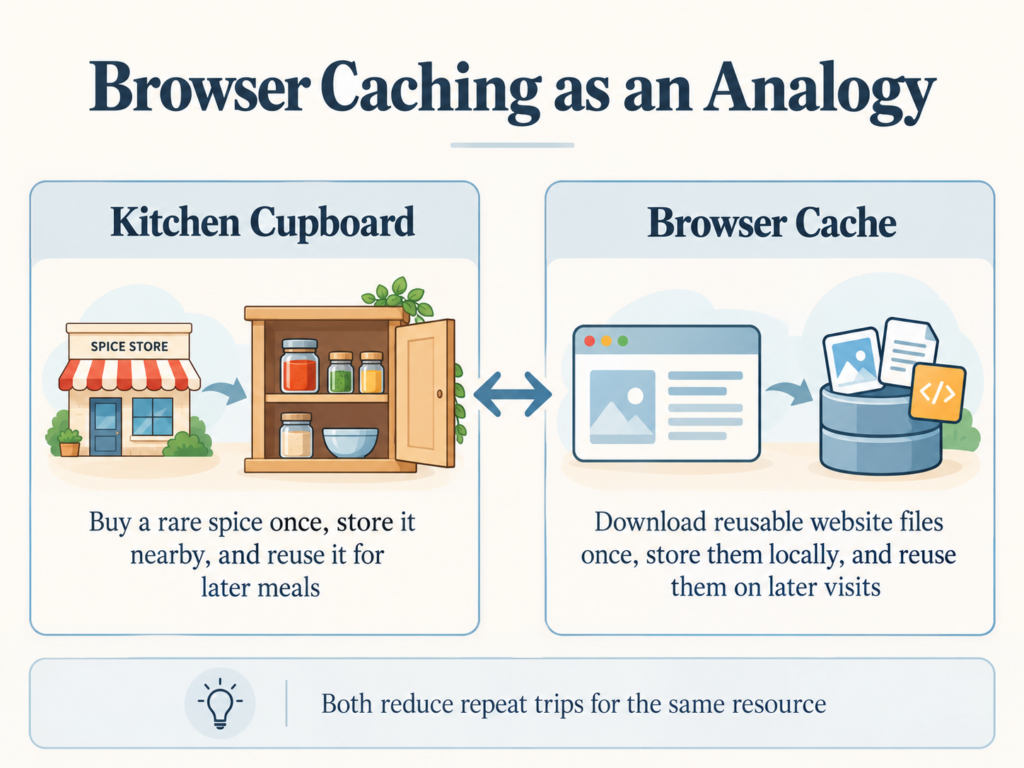
Versioned static assets—such as images, fonts, stylesheets, and scripts—are often good candidates for longer cache lifetimes. Frequently changing or personalized content, such as shopping carts, account information, checkout data, and live inventory, requires more cautious caching rules. The browser decides whether a stored response can be reused according to instructions such as Cache-Control and other HTTP caching information sent by the server.
Browser Cache vs. Cookies
Browser cache primarily stores copies of website resources to improve loading performance. Cookies store small pieces of data associated with a website and are commonly used for functions such as login sessions, preferences, analytics, and remembering user state.
Why Browser Cache Is Important
Browser caching reduces the amount of work required when previously downloaded resources are needed again. Its benefits are particularly noticeable when visitors move between pages that share the same fonts, stylesheets, scripts, logos, and other assets.
- Faster Repeat Page Loads: Retrieving a valid resource from a browser’s local cache can be faster than requesting and transferring the complete file again over the internet. This is particularly useful on websites where many pages use the same CSS, JavaScript, fonts, and images. Caching therefore tends to provide its greatest benefit on repeat visits and subsequent page views, rather than the first time a resource is downloaded.
- Lower Bandwidth and Server Work: Reusing cached files can reduce repeated network transfers and requests to the origin server. This lowers bandwidth consumption and can reduce unnecessary server work, especially on websites with substantial traffic or large reusable resources.
- Reduced Mobile Data Usage: Browser caching can also reduce mobile data usage. If a font, image, stylesheet, or script is already available in the cache and remains valid, the full resource may not need to be transferred again over a cellular connection.
Caching static resources is highly useful, but inappropriate cache rules can produce stale or incorrect information. Personalized and rapidly changing responses need to be handled carefully.
For example, shopping carts, account pages, checkout information, and current stock levels should not simply receive the same long cache lifetime as a versioned logo or stylesheet. HTTP caching provides directives such as private, no-cache, and no-store for different situations.
The no-cache directive allows a response to be stored but generally requires validation before it is reused, while no-store tells caches not to store the response.
Browser Caching, SEO, and User Experience
Effective caching can contribute to faster repeat loading and a smoother user experience. Reusing resources such as images, fonts, CSS, and JavaScript can also help loading-related performance when those resources would otherwise require another network transfer.
Caching may therefore support better page-performance experiences and, depending on the page and navigation, can help metrics such as Largest Contentful Paint (LCP). It should not, however, be treated as a guaranteed way to improve every Core Web Vital or search ranking.
Browser caching should also not be described as a direct way to maximize crawl budget. Google’s Web Rendering Service maintains its own cache for resources such as JavaScript and CSS. Google says this cache is not controlled by normal HTTP caching directives and may retain rendering resources for up to 30 days.
Google’s broader crawling infrastructure does support HTTP validation mechanisms such as ETag and Last-Modified, which can help avoid unnecessarily retransmitting unchanged content. That is related to HTTP caching, but it is separate from the browser cache used by ordinary website visitors.
How Browser Cache Works
The underlying HTTP caching system can become quite technical, but the basic browser process can be understood in five steps.
1. The Browser Requests the Page
When a page is requested, the browser retrieves the HTML and any additional resources it needs, such as CSS, JavaScript, fonts, and images.
If a required resource is not already available as a usable cached response, it must be retrieved from the appropriate server.
2. The Browser Reads the Cache Instructions
The server can send caching instructions in the HTTP response headers accompanying a resource.
One of the most important is Cache-Control:
Cache-Control: max-age=31536000max-age specifies, in seconds, how long a response can remain fresh. In this example, the period is approximately one year.
Another header is Expires, which specifies a date and time after which a cached response becomes stale. Expires is an older caching mechanism, and Cache-Control generally takes precedence when both are provided.
3. The Resource Is Stored
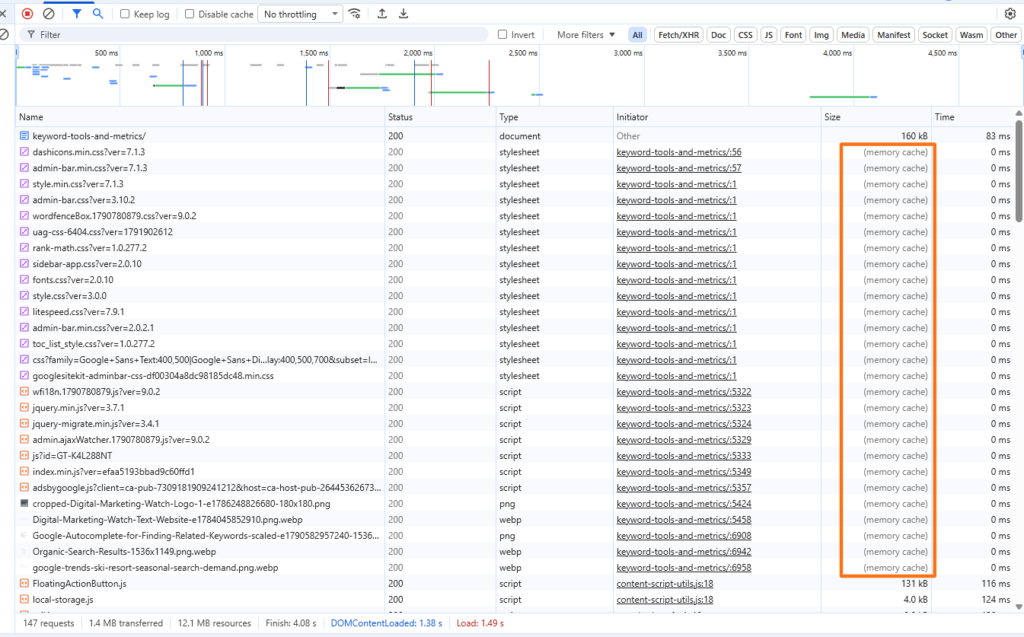
If caching is permitted, the browser may keep the response in browser-managed storage. Depending on the browser and circumstances, this can involve memory, disk storage, or another internal caching mechanism.
The browser also retains the information needed to determine whether that stored response can still be used.
4. A Cached Copy Is Reused
Suppose another page uses the same company logo. The browser checks its cache and determines whether the stored copy is still fresh. If it is, the browser can reuse that copy without transferring the complete image from the server again. This is one reason common site-wide assets can load much more efficiently as visitors move through a website.
5. Stale Resources Can Be Revalidated
A resource does not always need to be completely downloaded again when its freshness period ends. The browser can first ask the server whether its existing copy has changed.
Two common validators are:
- ETag: A value used to identify a particular version of a response.
- Last-Modified: Indicates when the resource was last modified.
If the browser’s cached copy is still current, the server can return 304 Not Modified.
A 304 response does not contain the full resource body. The browser is told to continue using its existing cached copy, reducing unnecessary data transfer. Google’s crawlers also support these standard conditional-request mechanisms.
Cache Busting
Long cache lifetimes create another problem: what happens when a file really does change?
Websites commonly solve this through cache busting, also called asset versioning or fingerprinting. Instead of replacing a file while keeping exactly the same resource URL, its URL changes when the content changes.
For example, style.css?v=123 may become style.css?v=124
In this case, the browser treats the changed URL as a different resource and retrieves the new version rather than continuing to use the old cached file.
How to Enable Browser Caching
How browser caching is configured depends on the website’s hosting environment, web server, CMS, and caching system.
WordPress
WordPress site owners commonly manage browser caching through the hosting environment or a caching/performance plugin rather than manually editing server configuration files.
LiteSpeed Cache: On a compatible setup, browser caching can be enabled under LiteSpeed Cache → Cache → Browser. The plugin includes a Browser Cache setting and Browser Cache TTL. LiteSpeed’s current documentation recommends 31557600 seconds, or approximately one year, for its static browser-cache TTL. LiteSpeed Cache settings also warn against applying long expiration settings indiscriminately to HTML.
- WP Rocket: WP Rocket automatically configures browser caching when it is activated.
- W3 Total Cache: This WordPress plugin provides browser-cache controls for features including expiration headers,
Cache-Control, and validators.
Hosted Platforms and Caching
Hosted platforms manage much of the underlying caching infrastructure themselves.
Shopify automatically applies browser caching to cacheable resources and currently states that these resources receive a one-year browser cache. It also provides its own CDN and other built-in performance optimizations.
Wix automatically caches most site pages and serves cached versions through its CDN. This is primarily platform/CDN caching rather than a browser-cache setting controlled by the site owner.
Squarespace stores uploaded images, videos, and other files through CDN providers and assigns them static asset URLs. Much of this delivery infrastructure is managed automatically by the platform.
For these platforms, ordinary site owners generally have much less need to configure low-level HTTP caching rules manually.
Stale Browser Cache and Troubleshooting
The main drawback of long-lived browser caching is the possibility of stale resources. A stylesheet, JavaScript file, image, or other resource may have changed on the website while a returning visitor still has an older cached version.
This can explain situations where a design change appears correctly for one visitor but not another.
A hard reload bypasses the browser cache for that reload and requests the resources again, but it does not clear the browser’s entire cache.
A private or incognito window can also help determine whether existing browser state is contributing to a problem. However, it does not bypass every type of cache: server-side caches and CDNs can still serve cached content.
Frequently Asked Questions
What is the difference between browser cache and server cache?
Browser cache stores reusable responses within an individual visitor’s browser. Server cache stores generated content or data on or near the website’s server so it can be reused instead of being rebuilt for every request.
Why are changes made to a website not showing up?
An older browser-cached stylesheet, script, or image may still be loading, but browser cache is not the only possible cause. Server cache, CDN cache, CMS caching, or incorrect asset versioning can also cause recently changed content to appear outdated.
How can browser cache be bypassed for a single page?
A hard reload bypasses the browser cache for that reload and requests the resources again without clearing the browser’s entire cache. In Chrome and Edge, common shortcuts include Ctrl + Shift + R on Windows and Command + Shift + R on macOS, although shortcuts vary between browsers.
Does browser caching directly improve SEO rankings?
Browser caching is primarily a performance and user-experience technique. Google does not document browser caching itself as a standalone ranking signal, so enabling it should not be treated as a direct ranking shortcut.