
Key Takeaways
- HTML elements are complete structures combining markup and content, while HTML tags are the opening or closing markup used to create them.
- Elements can be nested into hierarchical webpages, with parent and child relationships that organize document structure and content.
- HTML includes both container elements that can hold content and void elements, such as and , that stand alone without enclosing content.
- Semantic elements, metadata, headings, links, images, and titles help browsers and search engines interpret webpages, but elements alone do not guarantee improved rankings.
HTML elements are the building blocks used to structure and describe content on a webpage. They tell browsers whether content represents a heading, paragraph, link, image, navigation area, table, form, metadata, or another part of the document.
For example: <p>This is a paragraph.</p>
Here, the <p> element tells the browser that the enclosed text is a paragraph.
HTML, HTML Tags, and HTML Elements
The structure of a webpage is defined using HTML (HyperText Markup Language), which provides the basic structure and meaning of the content a browser displays. HTML uses tags to identify different parts of that content, such as headings, paragraphs, links, images, lists, and sections.
A tag is the markup itself, for example <p> or </p>, while an HTML element is the complete structure created by the tag or tags and the content they contain. In many cases, an element includes an opening tag, some content, and a closing tag, although some elements do not require a closing tag.
Multiple HTML elements are combined and nested together to form the structure of an entire webpage. The table below shows the difference between HTML, HTML tags, and HTML elements more clearly.
<p>
or
</p>
<p>Hello</p>
For example, in <strong>Important Point</strong>, <strong> is the opening tag, </strong> is the closing tag, and the entire expression is the <strong> element. MDN similarly distinguishes an element from its opening tag, content, closing tag, and attributes in its basic HTML syntax.
Structure of an HTML Element
A typical HTML element has three parts:
<p>Hello, world!</p>- Opening Tag:
<p>marks the beginning of the paragraph element and tells the browser what type of content follows. - Content:
Hello, world!is the text or information contained inside the element. - Closing Tag:
</p>marks the end of the paragraph element.
Together, they form the complete HTML element. Some elements, known as void elements, are different because they do not contain content or use a separate closing tag.
How HTML Elements Work Together on a Webpage
HTML elements are combined and nested to create a complete document:
<!doctype html>
<html lang="en">
<head>
  <title>My Website</title>
  <meta name="description" content="An example webpage">
</head>
<body>
  <h1>Welcome</h1>
  <p>Learn more about <a href="/seo/">SEO</a>.</p>
</body>
</html>
Here, <html> contains the document, <head> contains metadata, <title> gives the document its title, and <body> contains the page content. Within the body, <h1> creates the main heading, <p> creates a paragraph, and <a> creates a link. <!doctype html> tells the browser to process the document using modern HTML standards; it is a declaration rather than an HTML element.
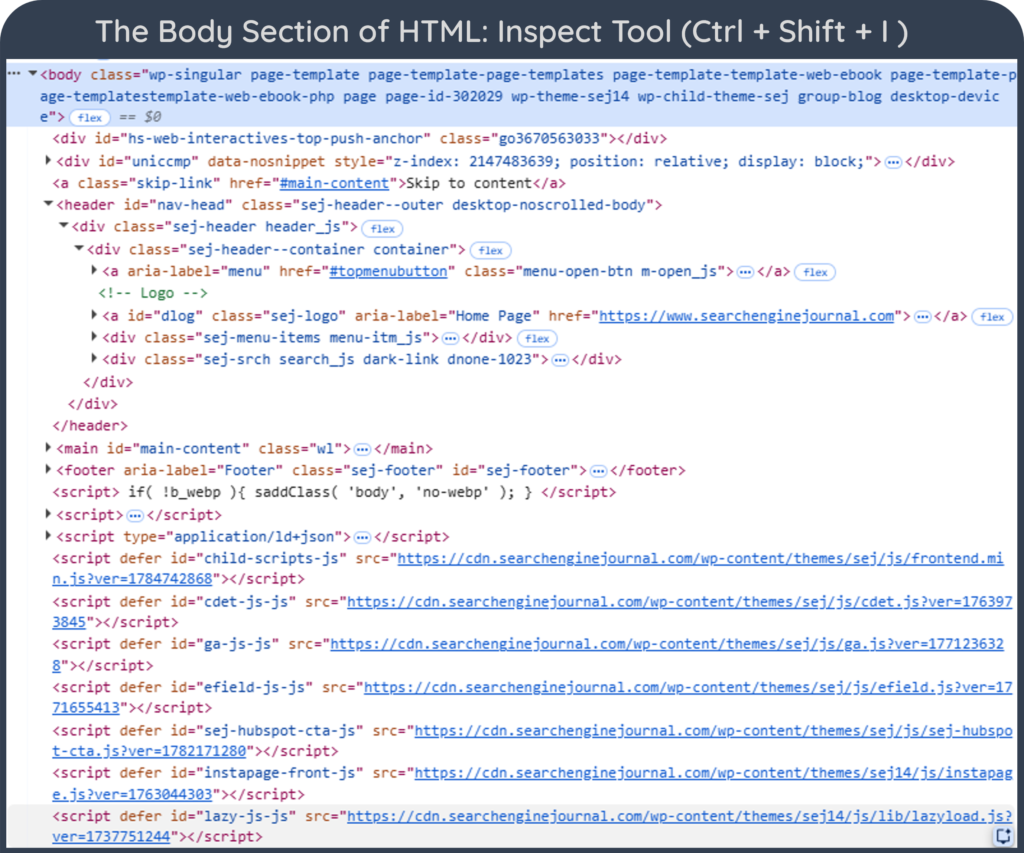
<body> section and nested page elementsHTML Elements, Meta Tags, and Metadata
Metadata provides information about an HTML document rather than forming the main visible page content. Much of it appears inside the <head> element.
For example: <meta name="description" content="Learn what HTML elements are.">
In this example, the <meta> element provides search engines and other systems with a short description (meta description) of the page, using “Learn what HTML elements are.” as the description content.
The <meta> element is an HTML element, although it is commonly called a meta tag. It is also a void element, meaning it does not contain child content or require a closing tag. Common metadata-related elements include <title>, <meta>, <link>, <style>, and <base>.
Meta elements can provide information such as:
<meta charset="UTF-8">
<meta name="robots" content="index, follow">
<meta name="viewport" content="width=device-width, initial-scale=1">
These three meta elements give the browser and search engines different types of information about the page.
<meta charset="UTF-8">tells the browser to use UTF-8 character encoding so text and symbols display correctly.<meta name="robots" content="index, follow">tells search engine crawlers that the page may be indexed and that links on the page may be followed. For Google,index, followare the default behaviors, so this directive normally does not need to be added explicitly.<meta name="viewport" content="width=device-width, initial-scale=1">helps the page scale correctly on mobile devices by matching the viewport width to the device width.
Block-Level and Inline HTML Elements
HTML elements have traditionally been described as block-level or inline according to their default layout behavior.
A block-level element normally starts on a new line and occupies the available horizontal space.
<p>First paragraph.</p>
<p>Second paragraph.</p>
Common examples of block-level elements include <p>, <div>, <section>, <article>, and headings such as <h1>.
An inline element normally remains within the surrounding line:
<p>This word is <strong>important</strong>.</p>Examples of inline elements include <a>, <strong>, <em>, and <span>.
This distinction is useful for beginners, but modern presentation is ultimately controlled by CSS. MDN notes that the historical block-versus-inline distinction is now treated as a CSS presentation characteristic, and the display property can change an element’s layout behavior.
Nested Elements and Empty Elements
Nested Elements
An element is nested when it appears inside another element.
<p>Read our <a href="/seo/">SEO guide</a>.</p>The <a> element is nested inside the <p> element. The paragraph is the parent, while the link (<a>) is its child.
Elements should also be closed in the correct order:
<p>This is <strong>important</strong>.</p>rather than overlapping their tags. Elements can contain several levels of nested elements, creating a hierarchical page structure.
Empty or Void Elements
A void element cannot contain text or other HTML elements and therefore does not have a separate closing tag.
Examples include:
<img src="photo.jpg" alt="Mountain landscape">
<br>
<hr>
<input type="text">
The current HTML standard identifies elements such as <img>, <meta>, <link>, <input>, <br>, <hr>, and <source> as void elements.
The term empty element is also commonly used informally, although void element is the more precise HTML term.
HTML Attributes
An HTML attribute provides additional information or settings for an element. Attributes are written inside the opening tag; many use a name and value, although some attributes can appear without a separate value. For example:
<a href="https://example.com">Visit Example</a>Here, href is the attribute name and https://example.com is its value.
Here’s another example of an HTML attribute:
<img src="team.jpg" alt="Digital marketing team">In this example, src specifies the image location, while alt provides alternative text describing the image.
Attributes are not separate HTML elements. They modify or provide additional information about the element to which they belong. Common HTML attributes include href, src, alt, class, id, lang, title, width, and height.
25 Important HTML Elements
HTML contains many elements for different purposes. The following are among the most useful for understanding ordinary webpages.
<html><head><title><meta><link><body><header><nav><main><section><article><aside><footer><h1>–<h6>*<p><a><img><strong><em><div><span><ul><ol><table><form><h1>–<h6> actually represents six different HTML elements for
H1–H6 headings
:
H1, H2, H3, H4, H5, and H6.
Modern HTML references organize elements according to their purpose and content categories, including sections, text content, forms, tables, interactive content, and embedded content.
Semantic HTML
Some HTML elements describe the meaning or role of the content they contain, not just how it appears. Elements such as <nav>, <main>, <article>, <strong>, and <em> are examples of semantic HTML elements because they give browsers, search engines, and assistive technologies more context about the page structure and content.
How to Check or Edit HTML Elements
You do not need to build websites manually in HTML to inspect or occasionally edit elements.
WordPress
WordPress’s Block Editor generates HTML from blocks. Users can also add a Custom HTML block to enter HTML directly; WordPress documents that its markup is saved as part of the post content.
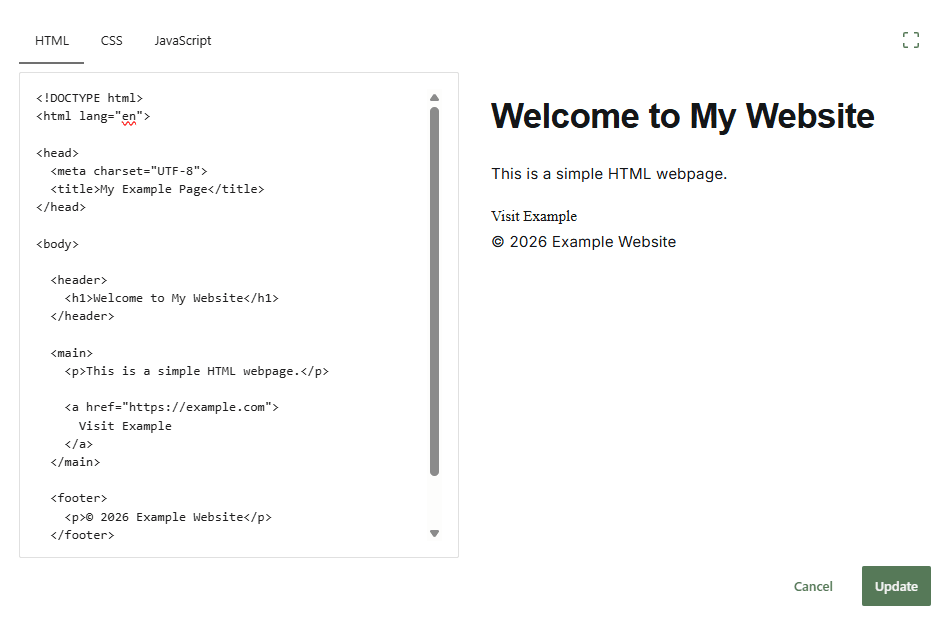
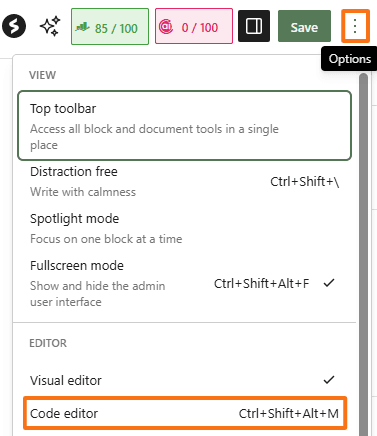
Depending on the block and editor interface, HTML can also be inspected through code-editing options. Editing markup manually should be done carefully because invalid HTML can affect how content is displayed.
Wix
Wix primarily manages page structure through its visual editors rather than exposing all generated page HTML for direct editing. It does, however, support HTML embeds, custom elements, and custom code for supported use cases.
Chrome Inspect
Any webpage can be inspected in Chrome:
- Right-click an element and select Inspect.
- Chrome DevTools opens the Elements panel.
- Expand the HTML tree to view nested elements.
- Inspect tags, attributes, text, and related CSS.
- Edit the markup temporarily to test changes.
Changes made through Chrome DevTools are temporary and affect only the page in your browser. They do not permanently change the website.
Note
With content management systems such as WordPress and Wix, users usually do not need to write or edit HTML directly because the platform generates much of the code automatically. However, understanding basic HTML elements can make it easier to troubleshoot issues, interpret page structure, and understand how webpages are built behind the visual editor.
Frequently Asked Questions
What is the difference between an HTML tag and an HTML element?
An HTML tag is markup such as <p> or </p>. An HTML element is the complete unit represented by those tags and, where applicable, the content between them.
Does every HTML element need a closing tag?
No. Void elements such as <img>, <meta>, <br>, and <input> do not have separate closing tags.
Are meta tags HTML elements?
Yes. <meta> is an HTML element, although the term meta tag is commonly used when discussing elements that provide document metadata.
Are HTML elements important for SEO?
Yes. Elements such as titles, headings, links, images, and metadata help structure webpages and provide information that browsers and search engines can interpret. However, different elements have different roles, and simply adding an HTML element does not automatically improve rankings.
Can CSS change how HTML elements are displayed?
Yes. HTML primarily defines the structure and meaning of content, while CSS controls much of its presentation, including layout, spacing, colors, sizing, and whether an element is displayed as a block or inline box.