
Key Takeaways
- Heading tags, ranging from H1 through H6, organize webpage content into a hierarchy of headings, sections, and subsections.
- A clear H1 identifies the page’s main topic, while H2 through H6 provide progressively deeper structural levels as needed.
- Heading elements improve readability, scannability, accessibility, and search-engine understanding by clarifying relationships between topics and supporting points.
- Effective headings describe genuine sections concisely, maintain logical levels, use keywords naturally, and support navigation features such as tables of contents.
Heading tags, more precisely HTML heading elements, define headings and subheadings on a webpage using six levels from <h1> through <h6>. These elements organize webpage content into sections, with the <h1> generally representing the main heading and <h2> and <h3> elements commonly representing sections and subsections. They improve readability and help communicate the structure of the content to users and search engines.
Inside the <html> element, a webpage generally contains a <head> section and a <body> section. The <head> contains metadata and supporting information, such as the title and meta description, while the <body> contains the page content presented to visitors. Heading elements from <h1> through <h6> are placed inside the <body>.
HTML can technically contain multiple <h1> elements, but using one clear H1 heading for the page’s main topic generally provides a simpler and more predictable structure. There is no fixed number of <h2> through <h6> elements. These headings should be used as needed to organize sections and subsections logically.
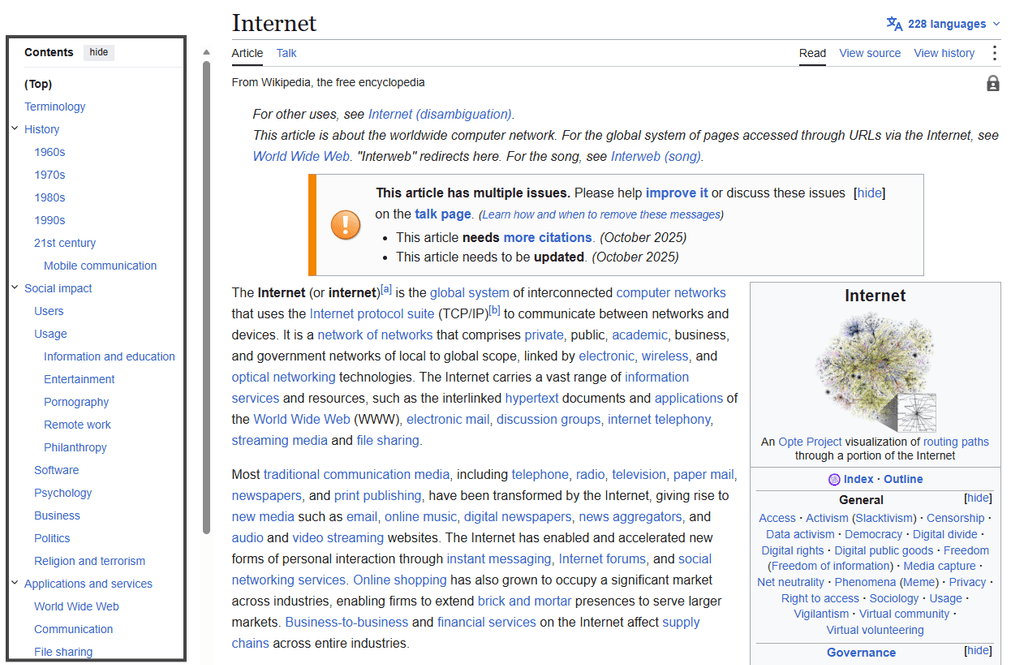
H1–H6 Heading Tags
H1–H6 heading tags create a logical document hierarchy by defining the main title, major sections, and increasingly specific subsections.
<h1>Tag: Serves as the main heading of the page and clearly identifies its primary topic. It usually appears near the top of the content.<h2>Tag: Introduces the main sections of the page and divides the content into broad topics.<h3>Tag: Creates subsections within an<h2>section and breaks a broad topic into smaller points.<h4>Tag: Introduces a subsection within an<h3>section and adds another level to the content hierarchy.<h5>Tag: Introduces a more deeply nested subsection within an<h4>section and is used when content requires additional structural levels.<h6>Tag: Represents the deepest native HTML heading level and is implemented for subsections nested beneath an<h5>heading.
How Is an H1 Heading Different from a Title Tag?
An H1 heading is the main visible heading on a webpage and is placed inside the <body> section of the HTML. It introduces the page’s primary topic to readers and helps organize the visible content.
A title tag is placed inside the <head> section of the HTML. It commonly appears in browser tabs and may be used by search engines as the clickable title in search results. Unlike the H1 heading, the <title> element is not normally displayed within the page content itself.
An H1 heading has no fixed character limit, although it should remain clear and concise. A title tag also has no fixed limit, but titles of approximately 50 to 60 characters often display clearly in search results, depending on the device width and words used.
Implementing, Checking, and Editing H1–H6 Heading Tags
Heading tags form the main title, section headings, and subsection headings that divide paragraphs into clear and readable sections. They can be viewed directly on a webpage and checked through browser inspection tools (Ctrl + Shift + I). They can also be edited through the text editor of a content management system, such as WordPress, or directly within the webpage’s HTML source code.
How to Apply Headings in Microsoft Word
- Select the text that should become a heading.
- Open the Home tab.
- Locate the Styles section.
- Select Heading 1, Heading 2, Heading 3, or another appropriate heading level.
Using Word’s built-in heading styles creates a clear document hierarchy. When the content is later pasted into WordPress, some heading formatting may be preserved, although the exact result depends on the editor and paste settings.
How to Apply Headings in WordPress
- Enter the heading text on a separate line.
- Select the block and change it to a Heading block.
- Open the heading-level control in the block toolbar.
- Choose the appropriate level, such as H1, H2, H3, or H4, according to the content hierarchy.
In most WordPress templates, the page or post title already provides the <h1>, so headings added within the content generally begin with H2.
How to Check Heading Tags
To inspect a heading, open the webpage, right-click the relevant text, and select Inspect. The browser’s Elements panel will highlight the corresponding HTML, showing whether the text uses an <h1>, <h2>, <h3>, or another heading tag.
A browser extension such as Detailed SEO Extension can also display a complete outline of the headings used on a page.
How Heading Tags Support SEO and Content Structure
Heading tags organize a webpage into a clear hierarchy, helping readers and search engines understand how the main topic, sections, and supporting points relate to one another.
- Clarify Content Structure: Headings divide long passages into logical sections and create a clear relationship between primary and supporting topics.
- Help Search Engines Understand Context: Search engines use headings alongside other page elements to interpret the subject, structure, and relevance of the content.
- Improve Scannability: Descriptive headings allow readers to identify relevant sections quickly without reading the entire page line by line.
- Support Accessibility: Screen-reader users can navigate between headings to locate specific sections more efficiently.
- Enable Tables of Contents: Many content management systems and plugins use the heading hierarchy to generate clickable tables of contents automatically.
- Provide Natural Keyword Context: Relevant primary and secondary keywords can appear naturally in headings when they accurately describe the section beneath them.
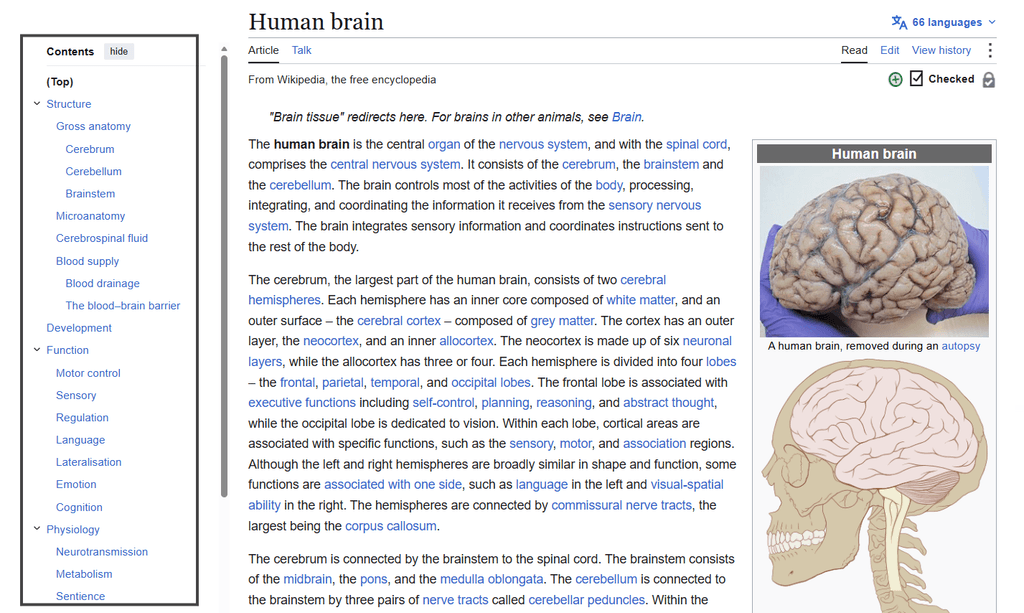
Things to Keep in Mind When Writing Heading Tags
- Use One Clear H1: Use a single
<h1>to identify the page’s main topic. Although multiple H1 elements may function technically, one clear H1 is generally preferred for a straightforward document structure. - Maintain a Logical Hierarchy: Choose heading levels according to their structural relationship. An
<h3>should normally introduce a subsection of an<h2>. In other words, heading levels should not normally be skipped when introducing deeper subsections. However, returning from a lower-level heading to a higher level is appropriate when the preceding subsection ends. - Write Descriptive Headings: Each heading should clearly summarize the section that follows and help readers understand the page’s organization. Vague headings such as “More Information” should be replaced with specific wording.
- Include Keywords Naturally: The primary topic may appear in the H1, while relevant supporting terms may be included in H2 and H3 headings when they accurately describe the content. Keywords should not be repeated unnaturally.
- Use Headings for Structure: Heading tags should identify genuine sections and subsections rather than being used only to make text larger or bolder. Visual appearance should be controlled separately through CSS or design settings.
- Keep Headings Concise: Headings should be brief enough to scan quickly while remaining specific and meaningful. A clear heading structure also helps assistive technologies provide navigation between page sections.
HTML Example of H1–H6 Heading Tags
HTML provides six heading levels, with <h1> representing the highest heading level and <h6> representing the lowest level. The example below uses only H1, H2, and H3 because many webpages do not require deeper heading levels. H4 through H6 are typically used only when the content structure genuinely needs additional levels of subdivision.
<!DOCTYPE html>

<html lang="en">

<head>
    <meta charset="UTF-8">
    <title>Ultimate Guide to Fitness | GymLife</title>
</head>

<body>

    <h1>The Ultimate Guide to Physical Fitness</h1>

    <p>Starting a fitness journey can support long-term health and well-being.</p>

    <h2>Strength Training</h2>

    <p>Strength training helps develop muscular strength and endurance.</p>

    <h3>Free Weights</h3>

    <p>Free weights allow a wide range of movements and exercises.</p>

    <h3>Weight Machines</h3>

    <p>Machines can provide additional stability and guided movement.</p>

    <h2>Cardiovascular Exercise</h2>

    <p>Cardiovascular exercise supports heart health and endurance.</p>

    <h3>Running</h3>

    <p>Running is a common form of aerobic exercise.</p>

    <h3>Cycling</h3>

    <p>Cycling provides aerobic exercise with relatively low joint impact.</p>

</body>

</html>
When rendered in a browser, this HTML creates a clear visual hierarchy rather than simply displaying six progressively smaller headings. The example below shows how the H1 introduces the page topic, while H2 and H3 headings organize major sections and their subsections.
Frequently Asked Questions
What is the main difference between H1 and H2 headings?
The H1 generally identifies the page’s main topic, while H2 headings divide the page’s content into sections. Lower-level headings such as H3 and H4 can then organize subsections within those sections.
Can a webpage have more than one H1 heading?
HTML permits multiple H1 elements, but using one clear main H1 is generally the simplest approach for establishing the page’s primary heading and keeping the document structure easy to understand.
Can heading tags help improve SEO rankings?
Heading tags are not a guaranteed ranking factor on their own, but they help organize content for readers and can help search engines understand the structure and main topics of a page.