H1–H6 Headings: 9 Tips for Better SEO and Readability
Key Takeaways
- H1–H6 headings organize content for readers, search engines, browsers, and assistive technologies, improving scanability, navigation, and accessibility.
- Most articles need one H1, several H2s, and selected H3s; deeper levels suit detailed guides, technical documentation, and research content.
- A logical hierarchy keeps related sections nested correctly, prevents confusing level jumps, and allows readers to understand the article by scanning headings alone.
- Descriptive, concise headings should reflect genuine section structure and naturally incorporate relevant keywords without serving merely as larger or bolder text.
H1–H6 headings do much more than break up large blocks of text. They create a logical structure that helps readers quickly scan a page while also helping search engines understand the relationship between different sections of your content. Whether you’re writing a short blog post or a detailed guide, using H1–H6 headings helps improve readability, content accessibility and on-page SEO.
The importance of headings is supported by several usability and SEO studies. A Nielsen Norman Group analysis estimated that users read about 20% of the text on an average webpage, with 28% representing an approximate upper limit. According to Semrush, descriptive headings can help search engines understand and extract information from specific page sections. This may make the content easier to surface in relevant search features, although Google automatically determines whether a page is suitable for a featured snippet.
Pages optimized with a strong typographic hierarchy are generally easier to read and navigate than poorly styled layouts. The W3C’s heading guide suggests that headings communicate the organization of page content and can help browsers and assistive technologies provide in-page navigation.
Table of Contents
What Are H1–H6 Headings and Where Should You Use Them?
H1–H6 headings are HTML heading tags that organize content into a clear hierarchy, much like the chapters and subchapters of a book. They help readers quickly understand the structure of a page while making it easier for search engines to identify the main topic and supporting sections.
For a typical blog post, most content only requires one H1, several H2 headings, and a few H3 subheadings. H4–H6 are generally reserved for long-form articles, technical documentation, research papers, or knowledge-base articles with multiple levels of nested information.
How to Add Heading Levels in Microsoft Word and WordPress
Creating headings is straightforward in both Microsoft Word and WordPress, although the process is slightly different.
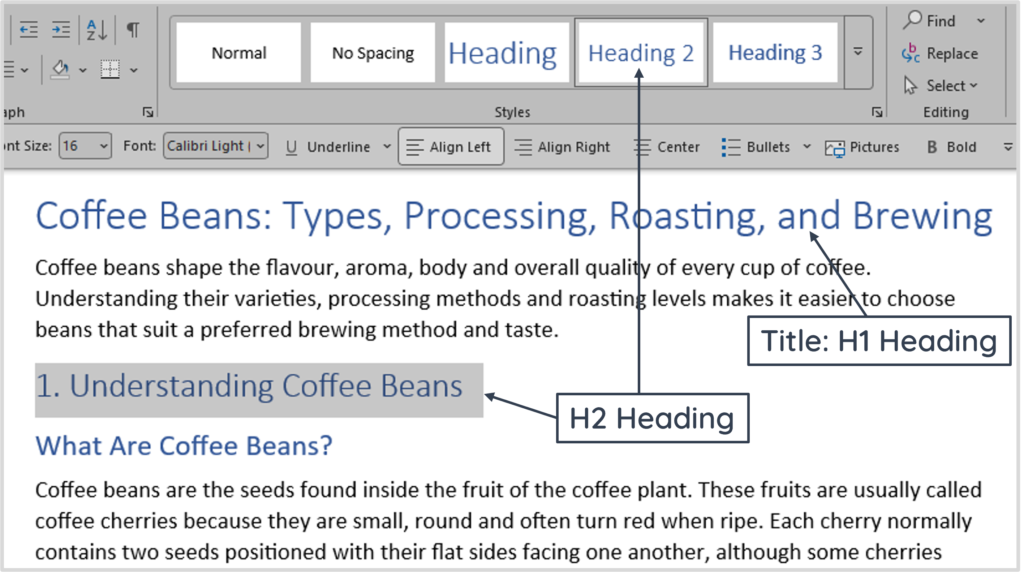
In Microsoft Word, select the text you want to use as a heading. Go to the Home tab and choose the appropriate style from the Styles group, such as Heading 1, Heading 2, or Heading 3. Using Word’s built-in heading styles also makes it easier to generate a table of contents later.
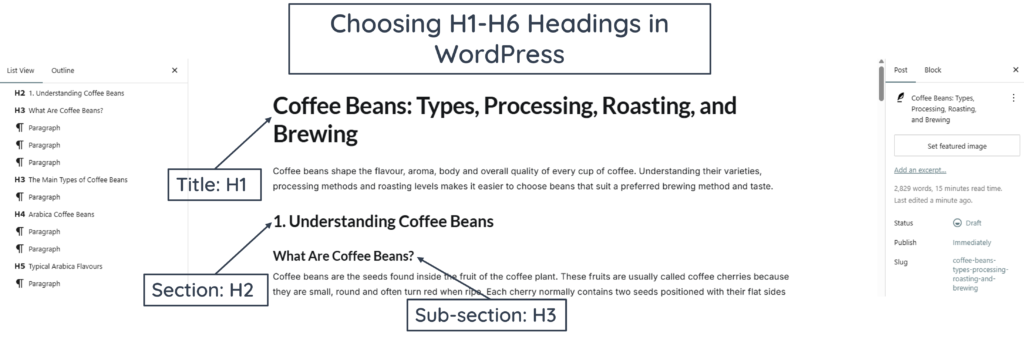
In the WordPress Block Editor (Gutenberg), add a Heading block by clicking the “+” (Add Block) button and selecting Heading. You can then choose H1, H2, H3, and other heading levels from the block toolbar. A quicker method is to type a forward slash (/) followed by Heading or simply type /heading, then press Enter to insert a Heading block. Once inserted, select the required heading level from the toolbar.
Practical Tips for Using H1–H6 Headings
The following best practices will help you create a clean heading structure that benefits both readers and search engines.
1. Use One Clear H1 Heading Per Page
Think of the H1 as the title of a book. It tells readers and search engines what the entire page is about.
Every page should normally contain only one H1 heading. This identifies the main topic of your content and provides the highest level of hierarchy. Using multiple H1 headings can make the page structure less clear, especially on informational articles.
2. Follow a Logical Heading Hierarchy
Headings should always follow a logical hierarchy. A typical structure looks like this:
In your article, avoid jumping directly from an H2 to an H5 as it breaks the content hierarchy and may confuse readers. Every heading level should naturally expand the idea introduced in the level above it.
However, once you’ve finished a subsection, it’s perfectly acceptable to move back from an H4 or H5 to a new H2 when starting an entirely new section of the article.
3. Keep Related Content Under the Correct Parent Heading
Every H3 should belong to an H2, and every H4 should support the H3 above it.
This nesting creates a logical outline that readers and assistive technologies can easily follow. Structure the headings so that when someone quickly scans only the headings, the person can easily understand the overall flow and structure of the article.
4. Use H4–H6 Only When Necessary
Many blog posts never need headings deeper than H3. This level of hierarchy is perfectly fine if the content doesn’t require in-depth sections and subsections. Moreover, keeping your hierarchy shallow makes articles easier to read.
You should reserve H4, H5, and H6 for highly detailed content such as in-depth guides, technical reports, white papers, research reports and extensive tutorials.
5. Don’t Use Headings Just to Change Font Size
A heading is a structural HTML element—not simply a larger font. If text genuinely functions as a heading, adjust its appearance using MS Word heading styles, or through H1–H6 heading blocks in WordPress editor rather than changing the font size.
It is important to note here that headings should always represent the structure of your content, not its visual design.
6. Write Descriptive Headings with Relevant Keywords
Avoid vague headings such as Introduction, Section One, More Information, or Additional Details.
Instead, write headings that briefly summarize the content underneath them. For example, How Search Engines Use Heading Tags or Common Heading Mistakes to Avoid. Clear headings improve both readability and search engine understanding.
Relevant keywords can also appear naturally in headings when they accurately describe the section.
7. Don’t Apply Heading Tags to Text That Is Not a Heading
Use heading elements when the text genuinely introduces or labels a section of content. Heading elements may also be appropriate in areas such as navigation, sidebars, or footers when they identify meaningful page sections. The important principle is that the heading should describe the content or region that follows it. Also, avoid applying H1–H6 tags merely to make isolated text larger or bolder.
8. Keep Headings Short and Easy to Scan
Most users scan before they read. In such cases, short headings are easier to scan because they can communicate ideas quickly than long sentences. Hence, aim for concise, descriptive phrases that immediately explain what the next section covers.
Therefore, instead of using Several Important Things That Every Beginner Should Understand Before Writing Better Blog Content for H2 or H3, write Writing Better Blog Content.
Simple headings improve both readability and page navigation.
9. Review Your Heading Structure Before Publishing
Before publishing an article, review your heading hierarchy. A quick review often catches structural issues before they affect readers or SEO.
As you check your headings, ask yourself:
- Is there only one
H1? - Does every
H3belong under anH2? - Is there consistent line spacing between successive H1–H6 sections and subsections?
- Have I skipped any heading levels?
- Are the headings descriptive?
- Can someone understand the article just by reading the headings?
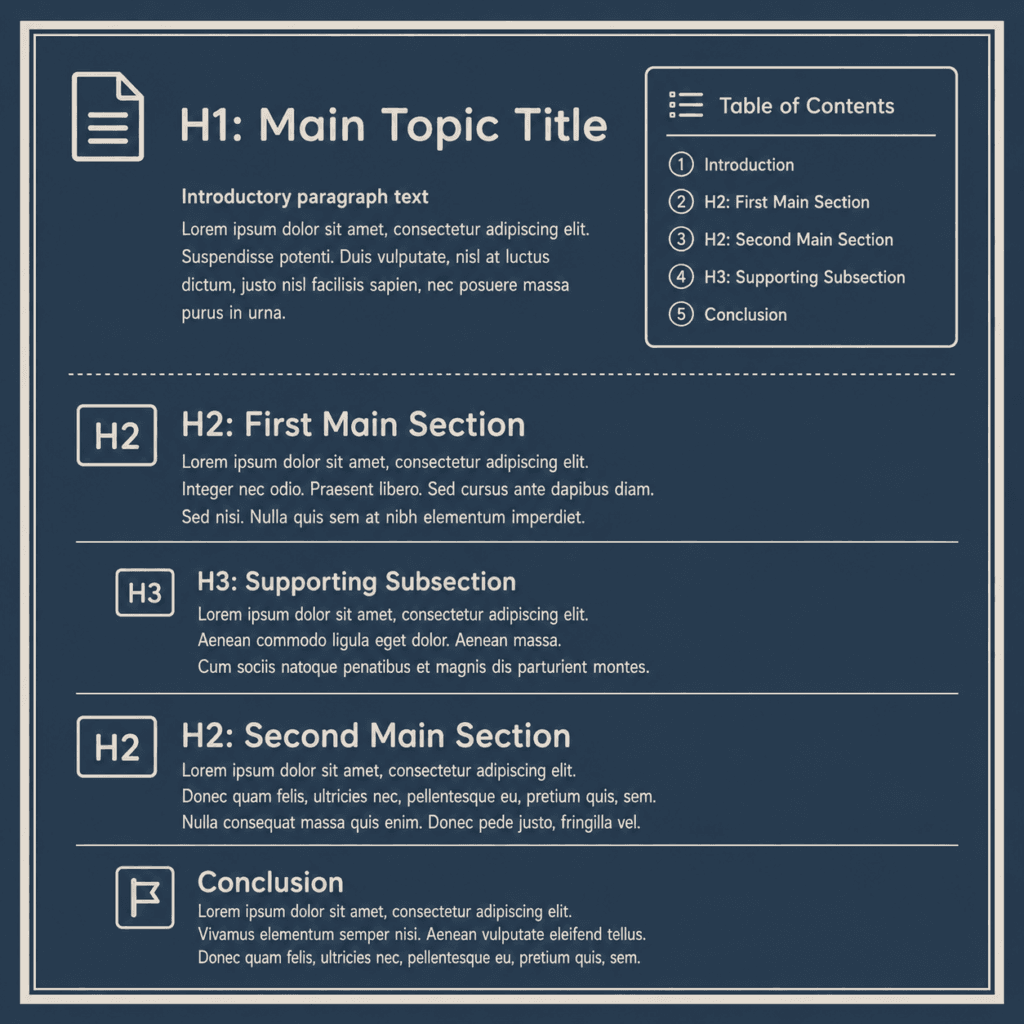
Example of a Proper Heading Structure
In this example, the H1 serves as the main page title, while the H2, H3, and H4 headings organize supporting sections and subsections beneath it. The structure progresses logically so that each heading level reflects its place within the content hierarchy.
This simple outline demonstrates how headings should naturally flow from broader topics to more detailed subsections.
Free Tools to Check Heading Structure
These free tools can help you review heading hierarchy, identify structural issues, and confirm that H1–H6 headings are used consistently across a webpage.
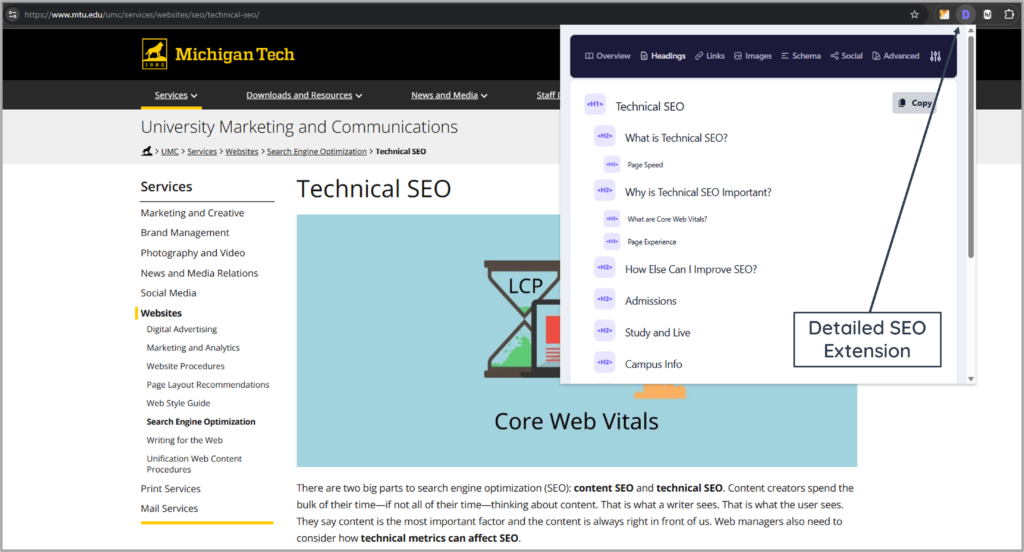
The Detailed SEO Extension can display a page’s heading structure in the browser, making it easier to review heading levels and identify hierarchy issues.
Frequently Asked Questions
Where should I use H1–H6 Headings?
You can use H1–H6 headings or <h1> to <h6> HTML tags in your articles to build a clear, logical content structure and help improve readability. You can start with <h1> for the main article or blog title, followed by <h2> through <h6> headings for nested sections and subsections.
How many H1 headings should a page have?
For most articles and webpages, one H1 heading is considered best practice because it clearly defines the main topic of the page.
Do H2 and H3 headings improve SEO?
Yes, they can support SEO by organizing content clearly, providing context about different sections of a page, and helping search engines understand content structure. However, using H2 or H3 tags does not automatically improve rankings or mean that a page will appear in search features such as featured snippets..
Can I skip from an H2 directly to an H4?
It is generally not recommended. Headings should follow a logical hierarchy so that both readers and search engines can easily understand the organization of your content.
Should every section have an H2 heading?
No. Use H2 headings for the main sections of an article. If a section needs to be divided further, use H3 headings underneath that H2, followed by H4 headings only when another level of detail is necessary.
Are heading tags only useful for SEO?
No. They also improve accessibility, help screen readers interpret page structure, make content easier to scan, and create a better reading experience for users.