
Key Takeaways
- 5xx errors indicate that a server, gateway, or intermediary could not successfully complete a request.
- Failures may originate from applications, databases, APIs, reverse proxies, CDNs, configuration issues, resource limits, or upstream services.
- The specific code provides clues: 500 signals a general server failure, while 502 and 504 often indicate communication or timeout problems.
- Brief errors are not automatically an SEO disaster, but persistent 5xx responses can restrict crawling, reduce crawl activity, affect indexing, and harm user conversions.
- Diagnosis typically involves reviewing Search Console, logs, recent changes, resource usage, upstream services, and post-fix response monitoring.
A 5xx error is an HTTP status code indicating that a server, gateway, or intermediary encountered a problem that prevented it from successfully completing a request. The request may have reached the website, but something required to process or deliver the requested content failed.
The problem does not necessarily originate from the website’s main hosting server. An application, database, API, reverse proxy, CDN, or another upstream service can also be responsible.
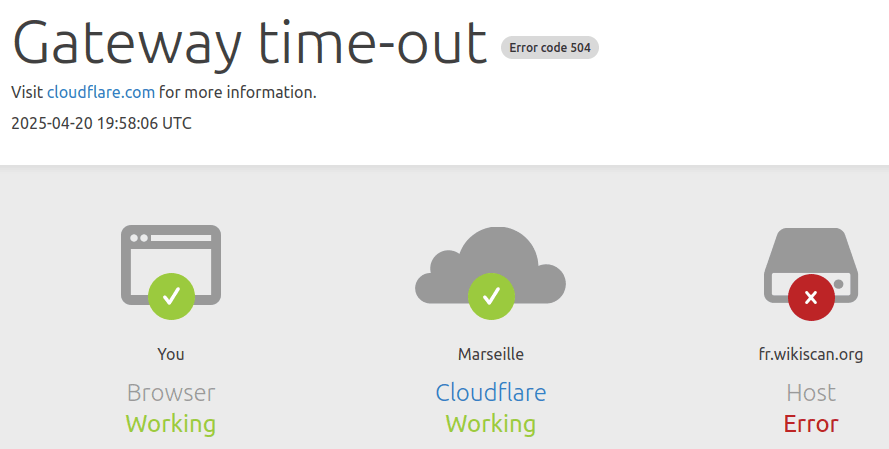
For visitors, a 5xx error may make an individual page, function, or entire website temporarily unavailable. For search engines, persistent server errors are more serious because crawlers cannot reliably retrieve the intended content. Google states that it ignores content returned alongside a 5xx response.
2xx, 3xx, 4xx, and 5xx Status Codes
HTTP status codes are grouped into families. 2xx codes indicate successful responses, 3xx codes cover redirection responses, 4xx codes indicate client errors, and 5xx codes indicate server errors.
Common Types of 5xx Errors
Different 5xx status codes provide clues about where or why a request failed. HTTP standards, which define how web clients and servers communicate, formally define several server-error responses.
The 500, 502, 503, and 504 errors are particularly relevant during normal website troubleshooting. A 500 usually indicates a general server-side failure, while 502 and 504 often point toward communication problems between multiple systems.

503 Service Unavailable is designed for temporary conditions such as overload or scheduled maintenance. The server can also provide a Retry-After header indicating when a client should try again.
509 Bandwidth Limit Exceeded is not a standardized HTTP status code, although some hosting platforms use it. 511 Network Authentication Required is standardized, but it is intended primarily for network intermediaries such as captive portals rather than normal origin web servers.
Why Do 5xx Errors Occur?
A 5xx error usually appears when one of the systems needed to deliver a webpage or service cannot complete its part of the request. Some failures last only a few seconds, while others continue until a configuration, application, or infrastructure problem is corrected.
- Application Problems: Faulty application code, CMS plugins, themes, or software dependencies can prevent a page from being generated correctly. For example, a WordPress plugin may trigger a server error after an incompatible update.
- Server Resource Limits: Sudden traffic increases or resource-intensive processes can consume available CPU, memory, database connections, or other hosting resources. The server may then become slow or temporarily unable to accept additional requests.
- Configuration Errors: Incorrect web server settings, PHP configuration, file permissions, or rules inside files such as
.htaccesscan prevent requests from being handled correctly. - Database or API Problems: A webpage may depend on information from a database or external API. If that service becomes unavailable or responds too slowly, the webpage can also fail.
- Gateway and Proxy Problems: CDNs, reverse proxies, load balancers, and similar systems sit between visitors and origin servers. Communication failures between these systems can produce
502or504errors. - Timeouts: A request may take longer than the permitted processing time because of a slow database query, overloaded application, unresponsive API, or upstream server problem.
- Maintenance and Temporary Outages: A website may deliberately return
503 Service Unavailableduring maintenance or temporary periods when it cannot safely handle normal traffic.
The visible error code identifies the type of failure, but it does not always reveal the exact underlying cause. Server and application logs are often needed to determine what actually happened.
How 5xx Errors Affect SEO and Website Performance
A brief server error is not automatically an SEO disaster. Persistent or widespread 5xx errors become more serious because both users and search crawlers repeatedly lose access to important pages.
- Prevent Successful Crawling: When Googlebot receives a server error, it cannot retrieve the page normally. Search Console reports affected URLs under Server error (5xx) when the server returns a 500-level response during Google’s request.
- Reduce Google’s Crawl Activity: A significant number of 5xx responses signals that the website may be struggling to handle requests. Google’s crawlers may temporarily reduce their crawl rate in response and gradually increase it again once the site consistently returns successful responses.
- Eventually Affect Indexing: Google does not normally remove an already indexed URL immediately after one temporary 5xx response. It initially preserves the URL, but pages that persistently return server errors can eventually be dropped from the index.
- Damage User Experience and Conversions: A 5xx error can prevent visitors from reading an article, viewing a product, submitting a form, logging in, or completing a checkout. Repeated outages can therefore lead directly to abandoned visits and lost conversions.
- Reduce Overall Website Availability: If server errors affect many pages rather than one isolated URL, search engines may retrieve less of the site while visitors encounter unreliable navigation and functionality.
Google documents the effects of persistent 5xx errors primarily in terms of crawling and indexing rather than as a separate quality penalty. Their SEO consequences arise primarily because content becomes unavailable to crawlers and users.
How to Diagnose and Fix 5xx Errors
Diagnosing a 5xx error involves identifying whether the problem comes from the website application, hosting environment, server configuration, CDN, or another service involved in delivering the page.
1. Check Google Search Console
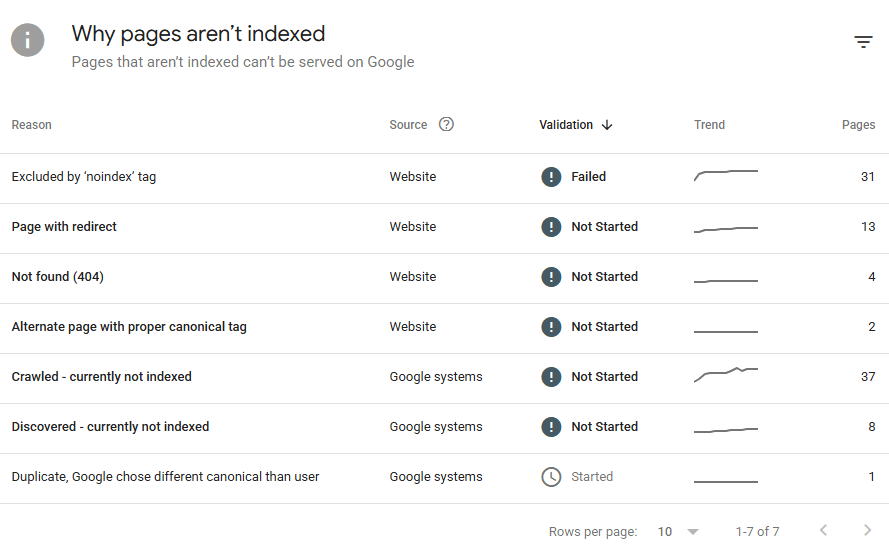
Open: Google Search Console → Indexing → Pages → Server error (5xx)
There, review the affected URLs and determine whether the problem is isolated or occurs across many sections of the site. Search Console’s Page Indexing report specifically identifies URLs for which Google’s request received a 500-level server error.
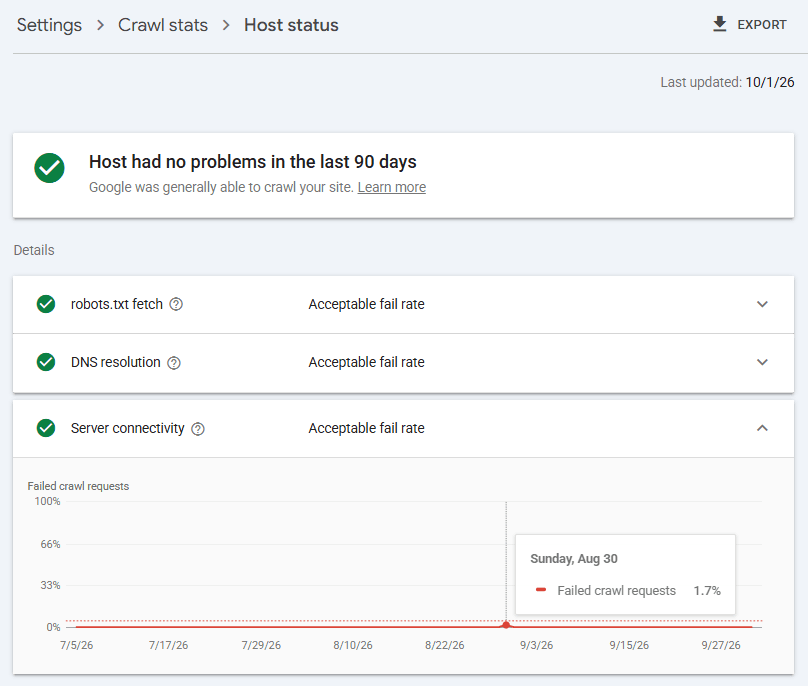
Also check Settings → Crawl Stats → Host status and the server-response breakdown for broader availability problems.
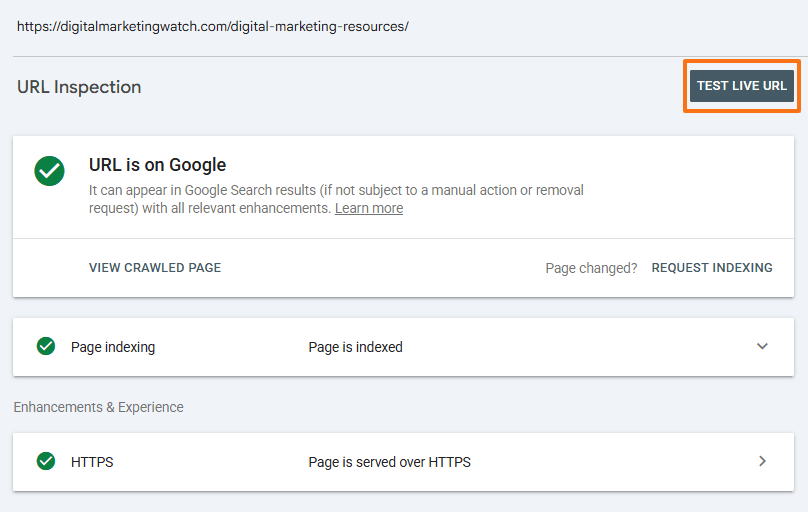
For an individual URL, use URL Inspection → Test Live URL after the problem appears to be fixed.
2. Review Server and Application Logs
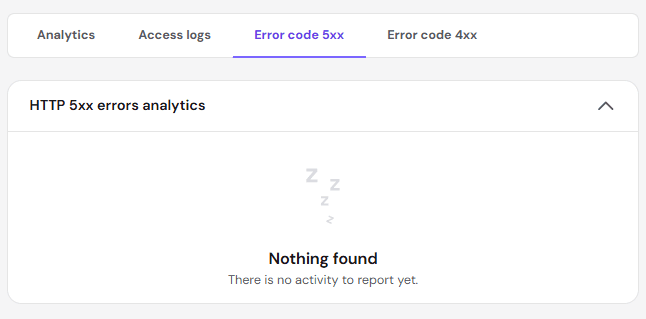
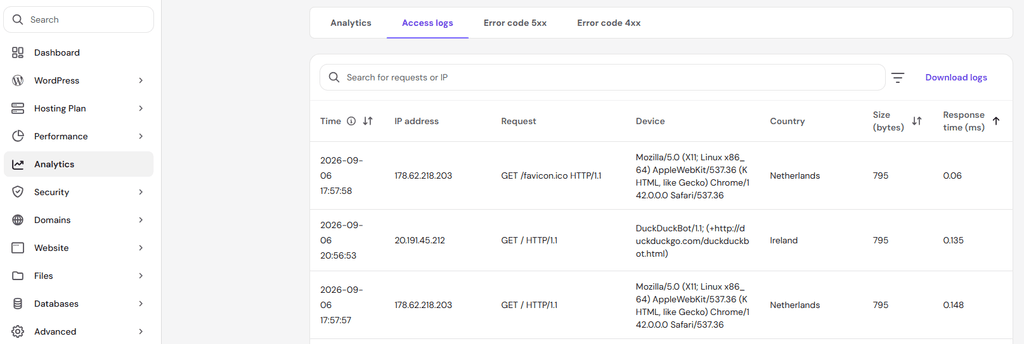
In Hostinger hPanel, Websites → Dashboard → Analytics → Error code 5xx can show the error type, request, time, IP address, and response time.
Logs may reveal information about failed scripts, application errors, memory limits, database problems, or requests occurring at the same time as the 5xx response. They do not always identify the exact cause, especially when the error originates from a CDN or another upstream service.
3. Check Recent Website Changes
If an error started immediately after a website change, review recent:
- plugin or theme updates;
- CMS updates;
- PHP version changes;
- custom code;
- server configuration changes.
On WordPress, temporarily disabling a suspected plugin or safely rolling back a recent change can help determine whether it caused the failure. A backup should be available before making significant changes.
4. Check Hosting Resource Usage
Open the hosting dashboard and review available CPU, memory, storage, database connections, and other resource limits. In Hostinger hPanel, go to Websites → Manage → Resources Usage to review CPU, RAM, disk space, and inode usage.
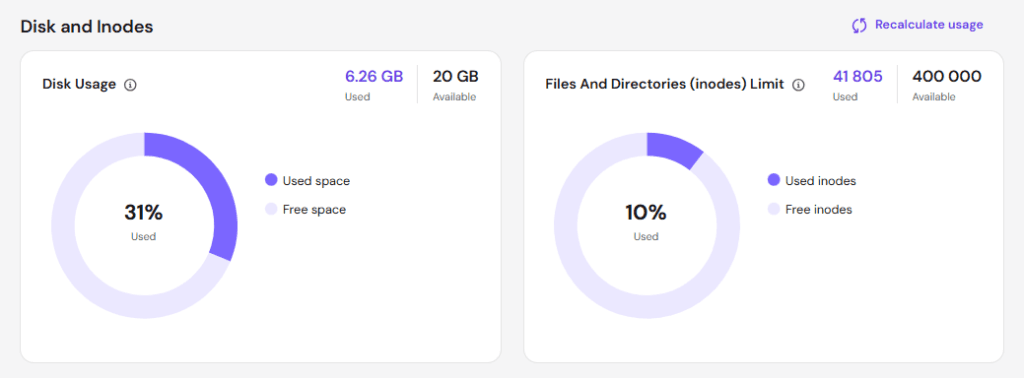
If errors coincide with traffic spikes or resource-heavy processes, the current hosting environment may require optimization or additional capacity. Resource exhaustion is particularly relevant when a site intermittently returns 503 Service Unavailable.
5. Investigate Timeouts and Upstream Services
502 and 504 errors often require checking the systems behind the server handling the visitor’s request.
Test whether:
- the application server is responding;
- the database is available;
- external APIs are functioning;
- requests are taking unusually long;
- server timeout limits are being reached.
A 504 Gateway Timeout, for example, specifically indicates that a gateway or proxy did not receive a timely response from the server it depended on.
6. Test and Monitor After the Fix
After resolving the cause, confirm that important URLs consistently return normal 2xx responses. Test them in a browser, through Search Console’s live URL inspection, and through a crawler where appropriate.
Keep monitoring the Page Indexing and Crawl Stats reports for recurring server or crawl errors before they begin affecting larger parts of the site.
Regular checks make it easier to identify patterns early, confirm that fixes are working, and maintain consistent access for both users and search engines.
Frequently Asked Questions
Will Google permanently de-index a page if it returns a 5xx error?
Not after an isolated temporary failure. Google initially retains already indexed URLs that return 5xx responses, but URLs that repeatedly return server errors can eventually be removed from the index. Google also warns that returning such errors for multiple days can negatively affect how a site appears in its products.
Why does a site load normally but Search Console still report 5xx errors?
The server problem may have been temporary or intermittent and occurred only when Googlebot requested the page. Load spikes, hosting problems, firewalls, CDNs, timeouts, or upstream services can also create errors that do not occur during every visit. Search Console’s Crawl Stats report can help determine when the errors occurred and whether they represent a recurring availability problem.
Can a CDN cause 5xx errors?
Yes. A CDN or reverse proxy can return a 5xx response if it cannot communicate correctly with the origin server, receives an invalid upstream response, encounters a timeout, or experiences its own infrastructure problem. Checking both the CDN and origin-server logs can help identify which system generated the error.