



Creating a mobile app is only the first step in building a digital product. The real challenge begins when you want users to discover, download, and use your app. For Android apps, the Google Play Store is the primary platform that connects developers with billions of Android users worldwide.
However, publishing an app is not simply uploading a file and clicking a button. Developers need to prepare their app, create a developer account, complete store information, follow Google policies, test the app properly, and go through the review process before the app becomes available.
Think of Google Play Store like a digital marketplace. Building an app is like creating a product, while publishing it is like opening a store where customers can find, evaluate, and purchase or download it. A well-prepared listing, smooth user experience, and proper optimization can significantly improve the chances of app discovery and growth.
Table of Contents
- What Is Google Play Store? Understanding Android App Distribution
- Preparing Your Android App for Google Play
- Step-by-Step Guide for Publishing an App on Google Play Store
- How to Optimize Your App After Publishing on Google Play
- Common Mistakes to Avoid When Publishing an App
- Conclusion
- Frequently Asked Questions
What Is Google Play Store? Understanding Android App Distribution
Google Play Store is the official digital marketplace for Android applications, games, books, movies, and other digital content.
For app developers, it is the main platform used to distribute Android apps to users around the world.
In simple terms:
Google Play Store connects app creators with Android users who want to discover and download apps.
Examples of apps available through Google Play include:
- Social media apps
- Productivity apps
- Mobile games
- Banking apps
- Shopping apps
- Educational apps
How Google Play Supports Android Apps
Android is an open mobile operating system used by millions of devices from different manufacturers.
Google Play provides a centralized place where users can:
- Search for apps
- Read reviews
- Download applications
- Receive updates
- Manage subscriptions
- Purchase digital products
For developers, Google Play provides tools to:
- Upload apps
- Manage releases
- Track performance
- Analyze user behavior
- Improve app visibility
Google Play Store as an App Marketplace
Like an ecommerce marketplace, Google Play has millions of apps competing for attention.
A user searching:
“fitness tracking app”
may see thousands of options.
The apps that perform well usually have:
- Strong ratings
- Clear descriptions
- Good screenshots
- Frequent updates
- Positive user experience
This is why publishing an app is only the beginning. Developers also need to optimize and maintain their apps after launch.
Google Play Store vs Android Ecosystem
The Android ecosystem includes:
- Android operating system
- Mobile devices
- App developers
- Google Play services
- Users
Google Play Store is the distribution channel within this ecosystem.
Developers create apps for Android, then use Google Play to make those apps available to users.
Preparing Your Android App for Google Play
Before submitting an app, developers need to make sure it is technically ready, legally compliant, and properly presented.
A successful launch begins before opening Google Play Console.
Android App Requirements
Before publishing, your app should have:
- Stable performance
- Proper functionality
- No major bugs
- Secure user experience
- Compatibility with supported Android versions
Google reviews apps to ensure they meet quality and policy requirements.
APK vs AAB Files
Android apps can be packaged in different formats.
APK (Android Package Kit)
APK is the traditional file format used for installing Android applications.
It contains all required files for an app.
AAB (Android App Bundle)
AAB is the preferred publishing format for Google Play.
Instead of sending one large app file to every user, Google Play uses the bundle to generate optimized versions for different devices.
Benefits include:
- Smaller downloads
- Better performance
- More efficient delivery
Preparing App Assets
Before publishing, developers need visual and written materials.
Important assets include:
- App icon
- Screenshots
- Feature graphics
- App description
- App category
- Promotional content
These elements influence whether users decide to download the app.
App Description
A good description explains:
- What the app does
- Who it is for
- Key benefits
- Important features
Example:
Weak:
“Fitness app with many features.”
Better:
“Track workouts, monitor progress, and create personalized fitness routines from your phone.”
Privacy Policy and Permissions
Apps collecting user data usually need a privacy policy.
Developers should clearly explain:
- What data is collected
- Why it is collected
- How it is used
Apps must also properly declare permissions.
Examples:
- Camera access
- Location access
- Microphone access
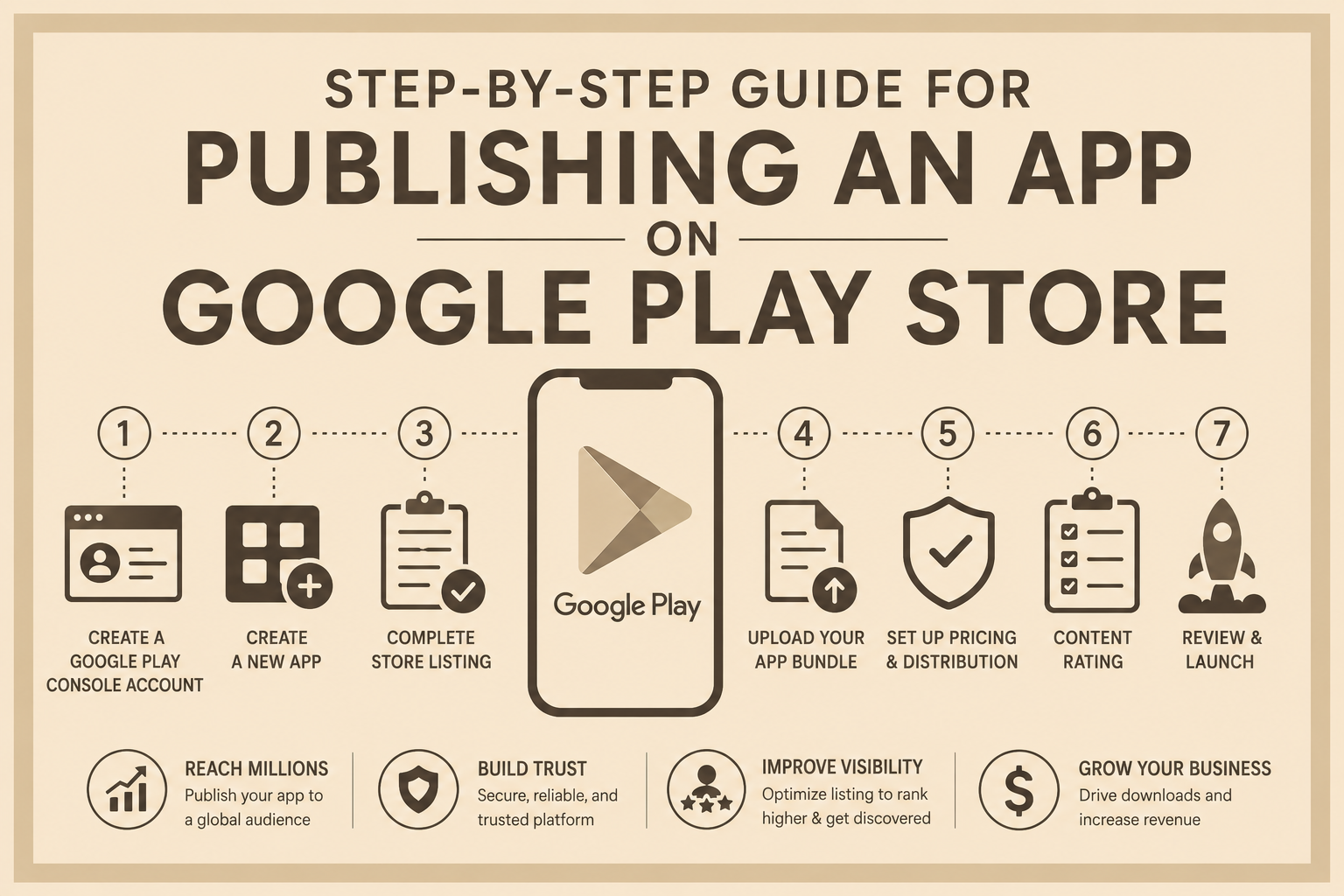
Step-by-Step Guide for Publishing an App on Google Play Store
This is the main publishing workflow.
The process can be divided into:
Developer Account → App Setup → Upload → Store Listing → Testing → Review → Publishing
Step 1: Create a Google Play Developer Account
To publish apps, developers need a Google Play Developer account.
The account provides access to Google Play Console.
During registration, developers usually provide:
- Developer information
- Contact details
- Payment information
- Verification details
Google Play Developer Account Fee
Google Play requires a registration fee for creating a developer account.
Developers should check the latest Google Play Console pricing before registration because fees and requirements can change.
Step 2: Access Google Play Console
Google Play Console is the main platform for managing Android apps.
Think of it as the control center of your app business.
Developers use it to:
- Create apps
- Upload releases
- Manage testing
- View analytics
- Monitor crashes
- Respond to reviews
Step 3: Create a New App
Inside Play Console:
- Select “Create App”
- Add app name
- Choose default language
- Select app type
- Select free or paid option
- Accept declarations
The app entry is then created inside your dashboard.
Step 4: Upload Your App File
Developers upload their Android App Bundle (AAB).
Before upload, ensure:
- Correct app version
- Proper signing
- No critical errors
Google Play processes the uploaded file and checks compatibility.
Step 5: Complete Store Listing
The store listing is the page users see before downloading.
It includes:
- App name
- Short description
- Full description
- Screenshots
- App icon
- Category
- Contact information
A strong listing improves user trust.
Step 6: Add Screenshots and Graphics
Screenshots help users understand the app experience.
Good screenshots should show:
- Main features
- User interface
- Benefits
- Important workflows
Many users decide whether to install an app based on screenshots alone.
Step 7: Select Category and App Details
Choose the category that best represents the app.
Examples:
- Education
- Finance
- Health
- Games
- Productivity
Correct categorization improves discoverability.
Step 8: Complete App Content Information
Google requires developers to provide details about the app.
This may include:
- Target audience
- Content rating
- Data safety information
- Ads declaration
Step 9: Complete Age Rating
Age ratings help users understand whether an app is suitable for different audiences.
Developers answer questions about:
- Content
- Violence
- User interactions
- Mature material
Step 10: Set Up Testing Before Launch
Testing helps identify problems before public release.
Google Play provides different testing options.
Internal Testing
Used for quick testing with a small group.
Useful for:
- Developers
- Team members
- Early feedback
Closed Testing
Used for a selected group of external testers.
Useful for:
- Beta testing
- Gathering feedback
Open Testing
Allows more users to test the app before full launch.
Step 11: Submit App for Review
Once all requirements are complete, developers submit the app.
Google reviews:
- Policy compliance
- Security
- Functionality
- User experience
Step 12: App Approval and Publishing
After approval, developers can publish the app.
The app becomes available on Google Play.
The launch does not mean the work is finished. Successful apps require continuous improvement.
How to Optimize Your App After Publishing on Google Play
Publishing an app does not guarantee downloads.
Developers need to improve visibility and user adoption.
Play Store Optimization (ASO)
ASO (App Store Optimization) is the process of improving app visibility inside app marketplaces.
It includes:
- Keywords
- App title
- Description
- Screenshots
- Ratings
Improving App Discoverability
Apps become easier to find by optimizing:
- App name
- Keywords
- Category
- Description
- User reviews
Ratings and Reviews
Reviews influence user trust.
Developers can improve reviews by:
- Fixing issues quickly
- Responding to users
- Improving app quality
App Analytics
Google Play provides insights into:
- Downloads
- User engagement
- Crashes
- Ratings
- Retention
Analytics help developers make better decisions.
App Updates and Improvements
Successful apps regularly improve through:
- Bug fixes
- New features
- Performance improvements
- Security updates
Common Mistakes to Avoid When Publishing an App
Many first-time developers make avoidable mistakes.
Ignoring Google Play Policies
Policy violations can lead to rejection or removal.
Always review requirements before submission.
Poor Store Listing Quality
A technically good app can fail if its listing is weak.
Common problems:
- Poor screenshots
- Unclear description
- Missing information
Insufficient Testing
Launching without proper testing can result in:
- Negative reviews
- User complaints
- Low ratings
Ignoring Privacy Requirements
Apps collecting user information must clearly explain data usage.
Missing privacy details can delay approval.
Not Planning for Updates
Apps require ongoing maintenance.
Ignoring updates can reduce user trust and performance.
Conclusion
Publishing an app on Google Play Store involves much more than uploading an application file. Developers need to prepare their app, create a developer account, complete store information, test properly, and follow Google’s publishing requirements.
The publishing process becomes easier when approached step by step: prepare the app, create a strong listing, test carefully, submit for review, and continue improving after launch.
For long-term growth, developers should focus not only on getting an app approved but also on improving discoverability, user experience, security, and performance. As mobile technology continues evolving with AI-powered tools, better analytics, and smarter app experiences, successful apps will be those that continuously adapt to user needs.
Frequently Asked Questions
What is Google Play Store?
Google Play Store is the official marketplace for Android apps where users can discover, download, update, and manage applications.
How do I publish an app on Google Play?
To publish an app, you need to create a Google Play Developer account, upload your app, complete the store listing, provide required information, test the app, and submit it for review.
What is Google Play Console?
Google Play Console is the platform developers use to manage Android apps, upload releases, track performance, and handle publishing.
How much does it cost to publish an app on Google Play?
Publishing requires a Google Play Developer account, which has a registration fee. Developers should check the latest official pricing before creating an account.
How long does Google Play app approval take?
Approval time can vary depending on the app, review requirements, and policy checks.
Why do apps get rejected on Google Play?
Apps may be rejected due to policy violations, security issues, poor functionality, missing information, or privacy concerns.
What is Play Store Optimization?
Play Store Optimization is the process of improving an app’s visibility and downloads through better keywords, descriptions, visuals, and user experience.
How can I increase app installs on Google Play?
Developers can increase installs through ASO, better screenshots, strong reviews, marketing, regular updates, and improving app quality.
Google Play vs App Store: Which is better?
Google Play provides access to a large Android user base, while Apple’s App Store serves iOS users. The better platform depends on the target audience and business goals.
What are Play Store keywords?
Play Store keywords are terms users search for when looking for apps. Including relevant keywords helps improve app discoverability.