A robots.txt file is a plain-text file that tells automated web crawlers which parts of a website they may or may not crawl. It is placed at the site root, meaning the top level of the specific protocol and host it controls. For example, the robots.txt file for https://example.com/ is normally found at: https://example.com/robots.txt
The root location is important because https://example.com/robots.txt applies only to URLs on the same protocol, host, and port. It does not automatically apply to another subdomain such as https://shop.example.com/ or to the HTTP version of the site.
A useful analogy is to think of robots.txt as a sign placed at the entrance of a building for automated visitors. It politely tells compliant crawlers such as Googlebot, bingbot, or GPTBot which areas they may enter and which they should avoid. Well-behaved crawlers generally respect the sign, but malicious or noncompliant bots may ignore it.
How to Find and Read a robots.txt File
Anyone can view a public robots.txt file by adding /robots.txt after the site’s origin. A common WordPress example is:
User-agent: *
Disallow: /wp-admin/
Allow: /wp-admin/admin-ajax.php
Sitemap: https://example.com/sitemap.xml
This means:
User-agent: *creates a general set of rules for crawlers matching the wildcard group.Disallow: /wp-admin/asks them not to crawl the WordPress administration directory.Allow: /wp-admin/admin-ajax.phpmakes an exception for that particular file.Sitemap:gives crawlers the complete URL of the site’s XML sitemap.
/wp-admin/ is the directory used for much of the WordPress administrative backend. admin-ajax.php is a WordPress endpoint used to process AJAX requests, including requests that can be generated by public-facing website functionality.
A rule can also target one particular crawler:
User-agent: Googlebot
Disallow: /private-reports/
Here, Googlebot is asked not to crawl URLs beginning with /private-reports/.
Important robots.txt Directives
User-agent:
The User-agent: directive specifies which crawler a group of rules applies to. An asterisk (*) represents the general wildcard group; Google notes that its AdsBot crawlers are an exception and must be named explicitly when they need specific rules.
Common crawler tokens include:
| User Agent | Main Purpose |
|---|---|
| Googlebot | Google’s primary Search crawler |
| Googlebot-Image | Google image crawling |
| Googlebot-Video | Google video crawling |
| Googlebot-News | Crawl preferences for Google News |
| bingbot | Bing’s primary web crawler |
| OAI-SearchBot | OpenAI crawler used for ChatGPT search discovery |
| GPTBot | OpenAI crawler associated with potential model-training use |
Google documents its specialized crawler tokens separately, while Microsoft currently identifies bingbot as its standard crawler.
Disallow:
Disallow: identifies a URL path that a matching crawler should not access.
User-agent: *
Disallow: /checkout/
This asks matching crawlers not to crawl URLs inside /checkout/.
Allow:
Allow: can create an exception inside a path that would otherwise be blocked.
User-agent: *
Disallow: /members/
Allow: /members/public-guide/
The /members/ area is blocked, but /members/public-guide/ remains crawlable.
Sitemap:
The Sitemap: directive provides the fully qualified URL of an XML sitemap or sitemap index:
Sitemap: https://example.com/sitemap_index.xmlUnlike Allow and Disallow, the sitemap declaration is not tied to one user-agent group.
Targeting Specific Search and AI Bots
Different rule groups can be created for different crawlers:
User-agent: Googlebot
Disallow: /internal/

User-agent: bingbot
Disallow: /internal/
AI companies may also operate different crawlers for different purposes. For example:
User-agent: OAI-SearchBot
Allow: /

User-agent: GPTBot
Disallow: /
OpenAI currently says that allowing OAI-SearchBot helps content become eligible for discovery, summaries, citations, and links in ChatGPT search. Publishers can disallow GPTBot for pages they want excluded from potential training. These are therefore separate controls rather than one universal setting for all LLM use.
Using Wildcards: * and $
Google, Bing, and other major search engines support limited wildcard matching in URL paths. For example, an asterisk (*) represents zero or more characters:
User-agent: Googlebot
Disallow: /*?sort=*
This can match URLs containing a ?sort= parameter.
A dollar sign ($) marks the end of the URL:
User-agent: Googlebot
Disallow: /*.pdf$
This matches URLs ending specifically in .pdf, rather than URLs where .pdf is followed by additional characters.
Google applies the most specific matching rule, based on the length of the matching path. If equally specific Allow and Disallow rules conflict, Google uses the least restrictive rule—the Allow rule. Moreover, URL path matching is case-sensitive, so /Folder/ and /folder/ can be treated as different paths.
Adding Comments With #
A hash (#) begins a comment:
# Block internal search results
User-agent: *
Disallow: /search/
Crawlers ignore comment text. However, they are useful for explaining why a rule exists, separating sections, or leaving maintenance notes for other website administrators.
Crawl-delay
Some crawlers recognize Crawl-delay:
User-agent: bingbot
Crawl-delay: 5
Bing supports this directive to limit how frequently bingbot requests URLs. Google does not support crawl-delay in robots.txt, so it should not be treated as a universal directive.
Three Common robots.txt Misconceptions
1. robots.txt Controls Crawling, Not Indexing
Blocking a URL in robots.txt prevents compliant crawlers from fetching its content, but it does not guarantee that the URL will never appear in search results. Google may still learn about the URL through links or other sources.
2. robots.txt Is Not a Security Feature
The file is publicly accessible. Passwords, confidential files, customer information, and genuinely private areas should be protected using authentication and proper server-side access controls rather than robots.txt.
3. Bad Bots Can Ignore It
robots.txt is a cooperative crawling protocol, not a firewall. Search-engine crawlers generally follow applicable instructions, but malicious scrapers and other noncompliant bots may ignore them.
Robots.txt, Meta Robots, and X-Robots-Tag
Robots.txt, meta robots, and X-Robots-Tag perform different jobs. The robots.txt file primarily controls whether compliant crawlers may fetch URLs.
A meta robots tag can control indexing and search-result behavior for an HTML page. For example, <meta name="robots" content="noindex, follow"> tells supporting search engines not to index the HTML page, while still allowing links on it to be followed.
An X-Robots-Tag provides similar directives through an HTTP response header and can also be applied to non-HTML resources such as PDFs. For example, the X-Robots-Tag: noindex directive is sent in the HTTP response header and can be used for files such as a PDF that cannot contain a normal HTML meta robots tag.
If robots.txt prevents a crawler from accessing a page, the crawler may never see the page’s noindex directive.
Why Robots.txt Matters for SEO
Robots.txt can help websites:
- Manage crawling by preventing crawler access to unnecessary URL areas.
- Support crawl-budget management on large websites with extensive URL inventories.
- Reduce unnecessary server requests from compliant crawlers.
- Control faceted navigation and parameter URLs that could otherwise create large crawl spaces.
- Support XML sitemap discovery through the
Sitemap:directive. - Target specific search and AI crawlers with different access preferences.
- Prevent unnecessary administrative or technical URLs from consuming crawl resources.
It should not be used to hide sensitive information or as a substitute for indexing controls.
How to Create or Edit a Robots.txt File
Creating or editing a robots.txt file is usually straightforward, but small mistakes can accidentally block important pages or resources from search-engine crawlers. Google processes up to 500 KiB of a robots.txt file and ignores content beyond that limit.
Creating and Uploading Robots.txt Manually
A robots.txt file can be created using a plain-text editor such as Notepad:
- Create the required rules.
- Save the file exactly as
robots.txt, preferably using UTF-8 encoding. - Open the hosting file manager or connect to the server using FTP/SFTP.
- Locate the site’s document root. Depending on the host, this may be called
public_html,www, or a domain-specific folder. - Upload
robots.txtdirectly into that root directory, not inside/wp-content/,/uploads/, or another subdirectory. - Confirm that the file loads publicly at
https://example.com/robots.txt.
Google notes that the exact upload method depends on the site’s hosting and server architecture.
WordPress With Rank Math
The Rank Math plugin lets WordPress users manage a virtual robots.txt file:
WordPress Dashboard → Rank Math SEO → General Settings → Edit robots.txt
The option requires Advanced Mode. Add or modify the directives and save the changes. If a physical robots.txt file already exists in the server root, Rank Math’s virtual version will not override it; the physical file must be edited or removed separately.
WordPress With Yoast SEO
Yoast SEO lets you edit the robots.txt file from:
WordPress Dashboard → Yoast SEO → Tools → File Editor
If necessary, select Create robots.txt file, add or modify the rules, and save them. If the File Editor is unavailable or the server does not permit writing to the file, it can instead be edited through the hosting file manager or FTP.
Wix
Wix provides a built-in robots.txt editor that lets site owners review and customize crawler directives from the dashboard:
SEO & GEO → Tools and settings → Robots.txt Editor → View File
Rules can be entered there and saved without manually uploading a text file.
How to Check Robots.txt and Crawler Activity
The simplest check is to open: https://example.com/robots.txt
In Google Search Console, go to Settings → robots.txt
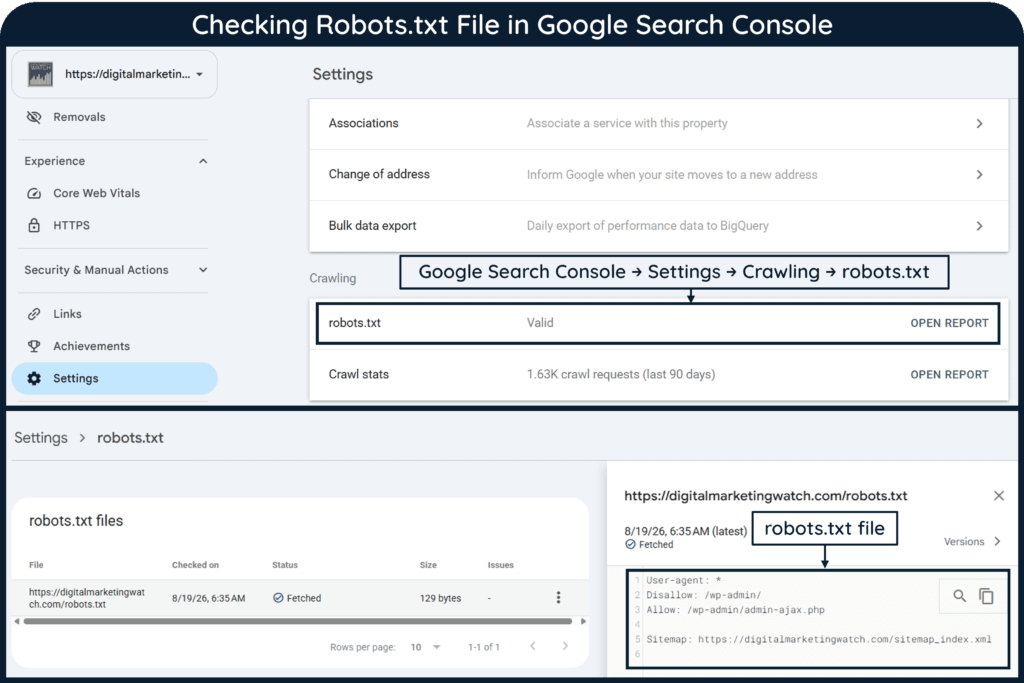
The robots.txt report shows the files Google found, when they were last crawled, and any warnings or errors.
To monitor actual Googlebot activity, use: Settings → Crawl stats
The Crawl Stats report shows crawl requests, response information, host status, file types, crawl purpose, and Googlebot type.
Common Robots.txt Patterns
| Goal | Example |
|---|---|
| Allow normal crawling | User-agent: * with an empty Disallow: |
| Block a directory | Disallow: /private/ |
| Allow one path inside a blocked directory | Allow: /private/public/ |
| Block a folder for one crawler | User-agent: Googlebot + Disallow: /folder/ |
| Block URLs containing a parameter | Disallow: /*?sort=* |
Block URLs ending in .pdf | Disallow: /*.pdf$ |
| Declare a sitemap | Sitemap: https://example.com/sitemap.xml |
| Add a maintenance note | # Block internal search pages |
Frequently Asked Questions
How does robots.txt affect SEO?
robots.txt can improve crawl management by keeping compliant crawlers away from unnecessary URL areas and directing resources toward useful content. Incorrect rules, however, can accidentally prevent important pages or resources from being crawled.
What is the difference between good bots and bad bots?
Good or compliant bots generally identify themselves and follow applicable robots.txt rules. Malicious or noncompliant bots may ignore the file, disguise their identity, or continue requesting blocked URLs.
What is the Sitemap protocol in robots.txt?
The Sitemap: directive specifies the complete URL of an XML sitemap or sitemap index so supporting crawlers can discover it.
What does the Disallow directive mean in robots.txt?
Disallow: specifies a URL path that the selected user agent should not crawl.
Can a page blocked by robots.txt still appear in Google?
Yes. Google may still know about the URL through links or other sources and can sometimes show the URL without crawling its content. Use appropriate indexing controls when the goal is to keep a page out of search results.